> ## Documentation Index
> Fetch the complete documentation index at: https://docs.incident.io/llms.txt
> Use this file to discover all available pages before exploring further.
# Notion
> Export post-mortems to Notion, using a template to keep write-ups consistent.
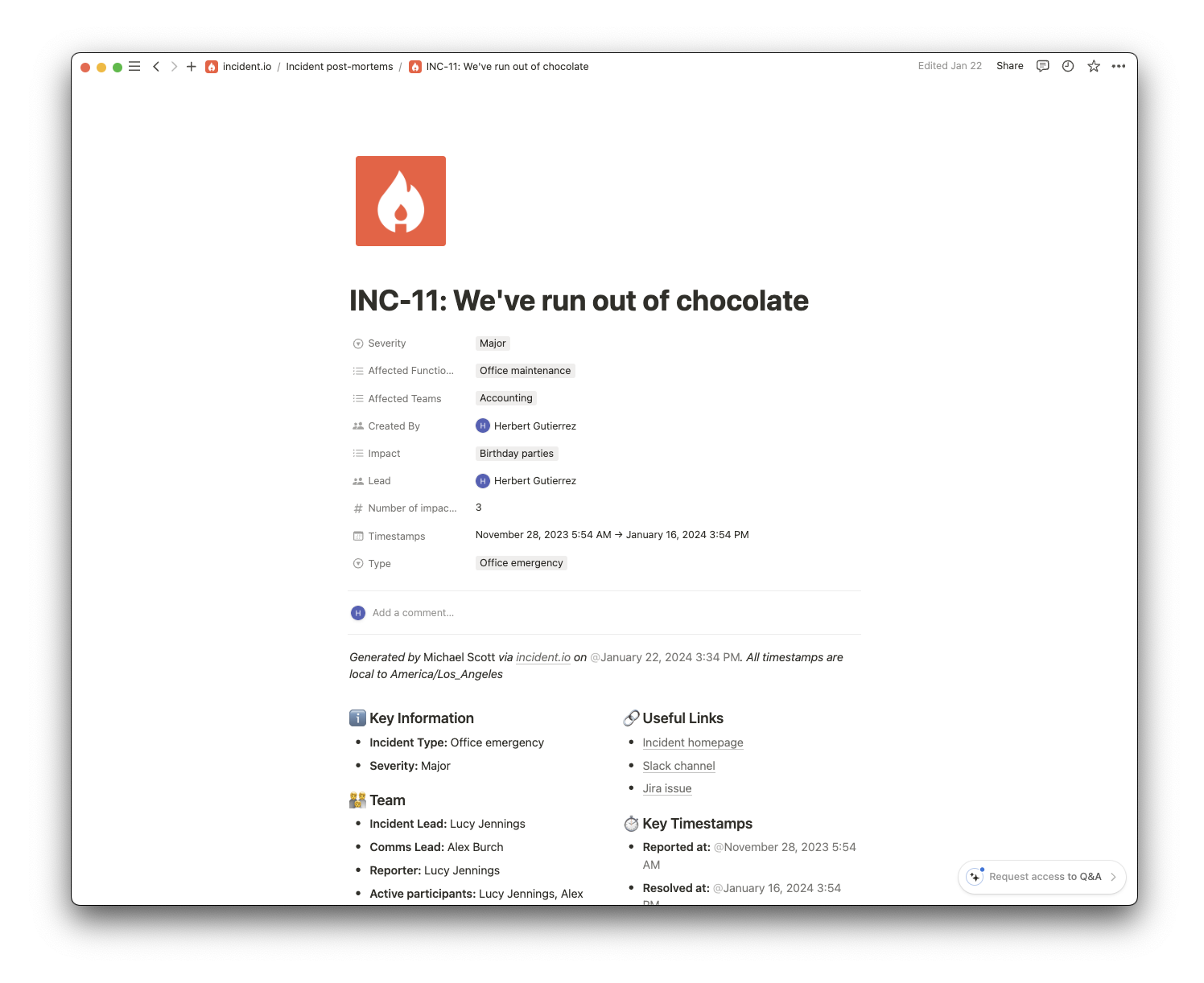
After your incident is over, it can be useful to dig into what happened in an incident, why, and how it can be prevented in the future.
Our Notion Integration allows you to export post-mortems into Notion. Which you can then use to collaborate with your team.
 ***
## Installation
Go to [Settings → Integrations](https://app.incident.io/~/settings/integrations), find **Notion** and click **Install**.
***
## Installation
Go to [Settings → Integrations](https://app.incident.io/~/settings/integrations), find **Notion** and click **Install**.
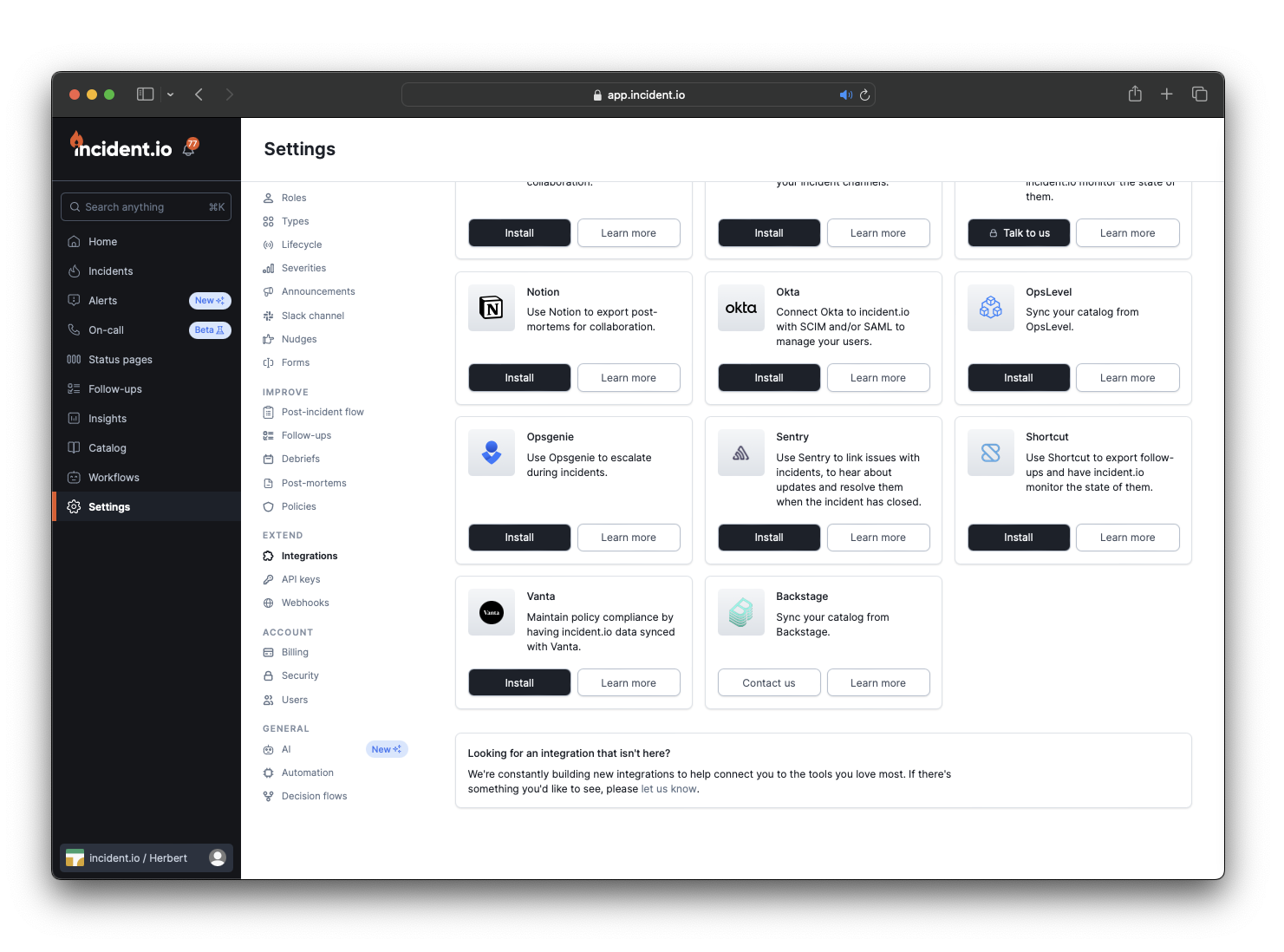 It's important to know that when the integration is installed, the connection to incident.io will belong to **the user who installed it**. Notion connections like this, which use OAuth, belong to a specific user. For this reason, you may wish to set up a dedicated service or "bot" account.
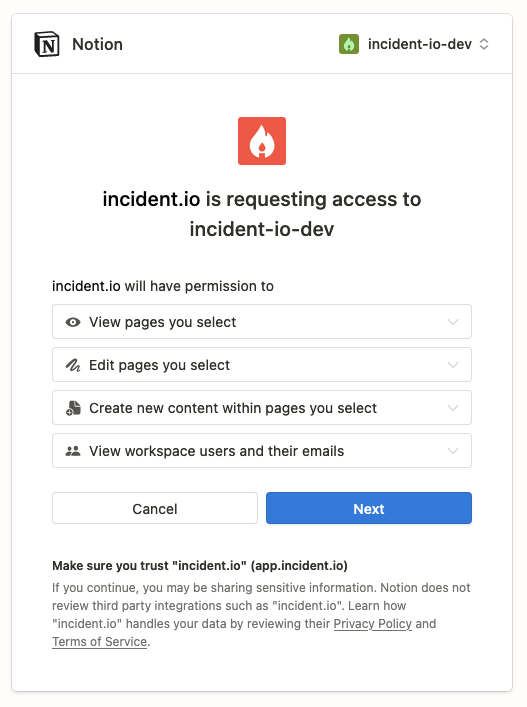
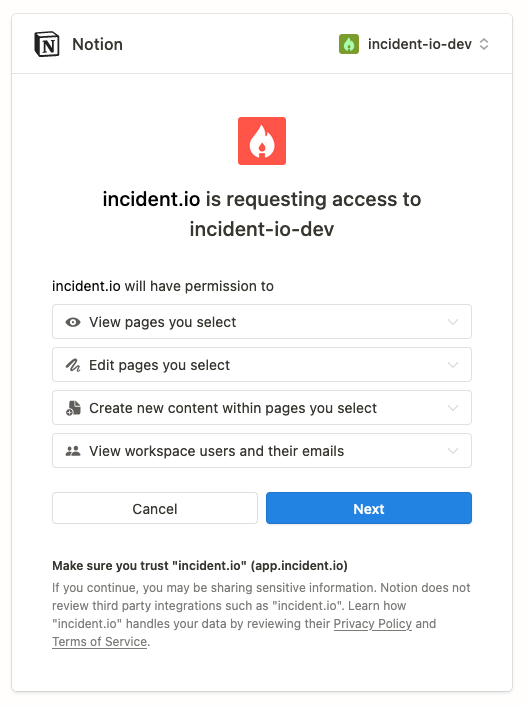
Click **Install in Notion**, and you'll be redirected to the install flow within Notion. Review the permissions we're requesting, and click **Next**
It's important to know that when the integration is installed, the connection to incident.io will belong to **the user who installed it**. Notion connections like this, which use OAuth, belong to a specific user. For this reason, you may wish to set up a dedicated service or "bot" account.
Click **Install in Notion**, and you'll be redirected to the install flow within Notion. Review the permissions we're requesting, and click **Next**
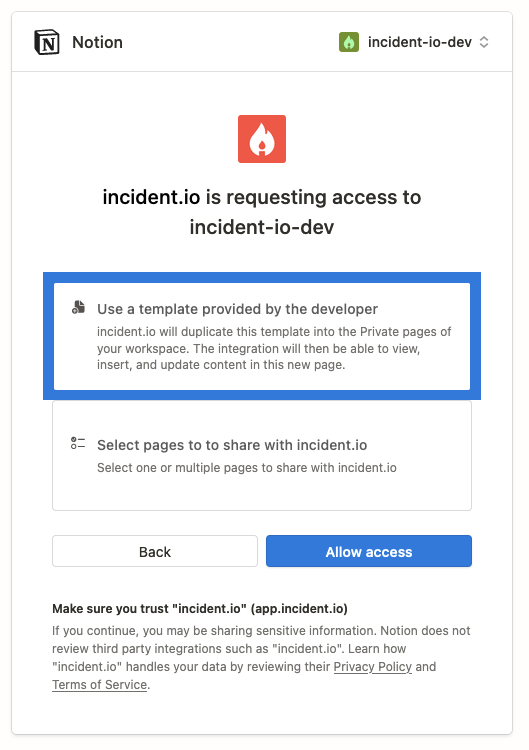
 We also need to install a template for the pages we create. Click **Use a template provided by the developer**, and then **Allow access**
 ## You're done
Congratulations, it's been installed
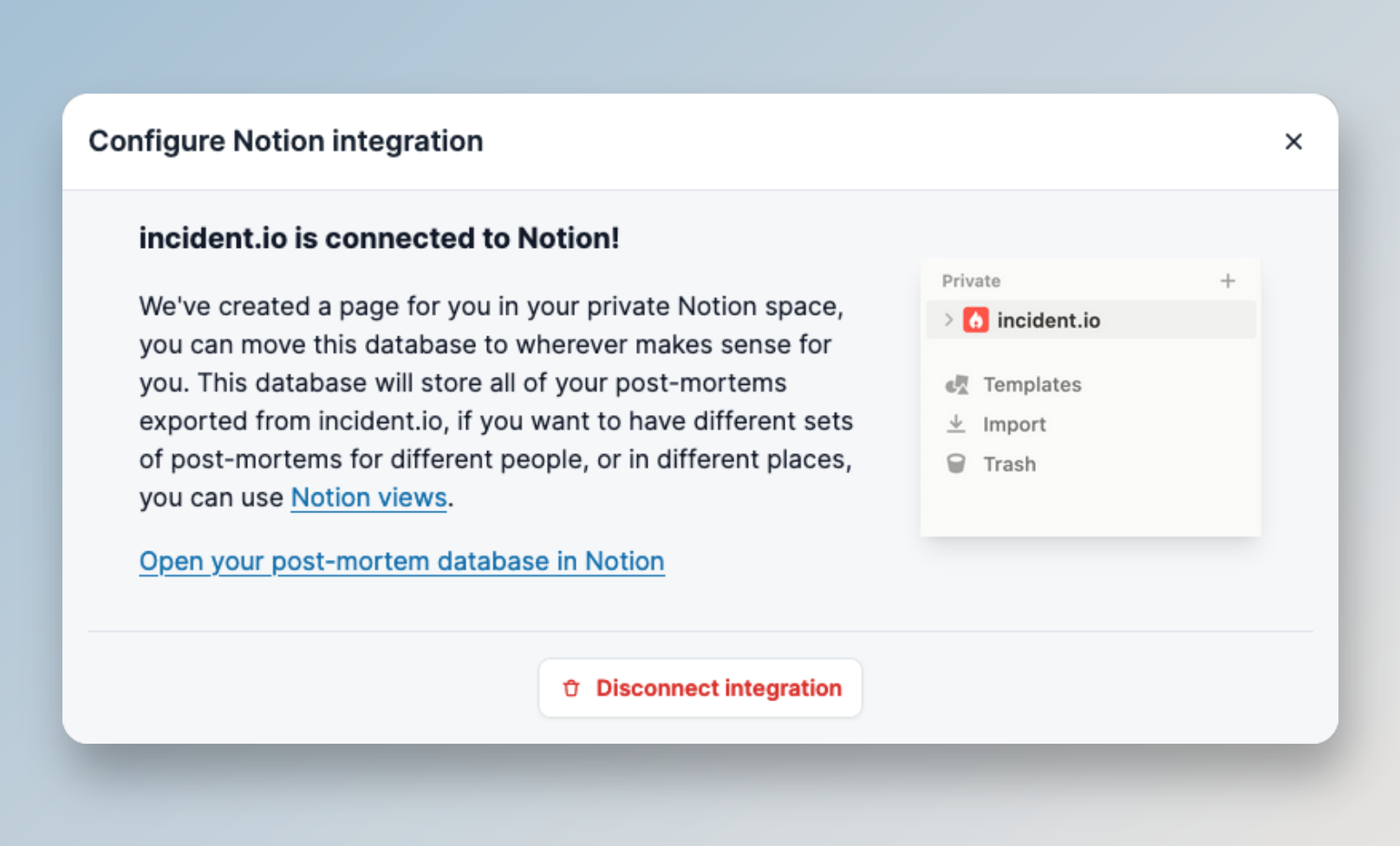
You'll find the page in your private Notion space – move it to somewhere that suits you, and that can be accessed by everyone.
## You're done
Congratulations, it's been installed
You'll find the page in your private Notion space – move it to somewhere that suits you, and that can be accessed by everyone.
 ***
## Exporting your first post-mortem
1. Go to the incident timeline of an incident
2. On the right-hand side, in the **Post-mortem** section, click **Create a post-mortem**
***
## Exporting your first post-mortem
1. Go to the incident timeline of an incident
2. On the right-hand side, in the **Post-mortem** section, click **Create a post-mortem**
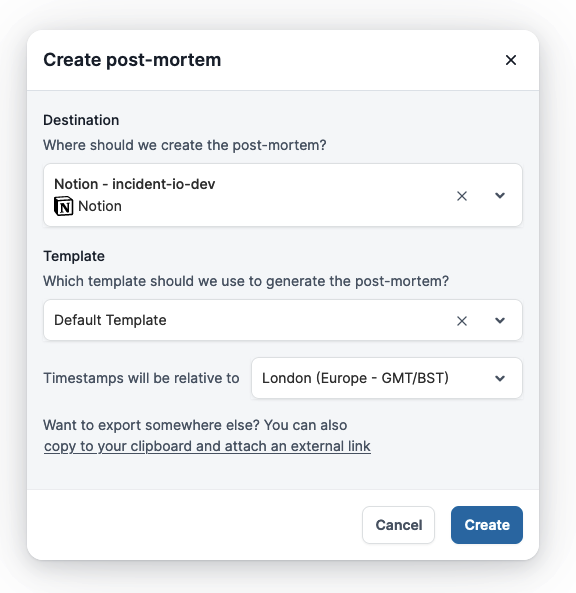 3. The **Create post-mortem** modal will appear
* Select **Notion** from the destinations
* Select your template
* Select which timezone should be used
* Click **Create** and wait a few seconds
* Your post-mortem document has been created, and it'll be linked to the incident page
***
## Grant access to specific pages
You can also connect Notion pages and databases as [document sources for investigations](/investigations/connect/documentation). When you add a page there and see this error, the URL is usually fine:
> We couldn't find this Notion page or database. Check the URL, or share it with the incident.io integration in Notion.
The integration can only read the pages and teamspaces you select in Notion, so a newly created page or teamspace stays invisible to us until you grant access to it.
To grant access, open Notion and go to **Settings → Connections**, select **incident.io**, and under **Page access** add the pages or teamspaces you want to sync, including the one that failed. There's no need to reconnect from incident.io.
### Grant access via reconnect
If the above doesn't work, reconnect the integration and select the pages you need on Notion's consent screen:
1. Go to [Settings → Integrations](https://app.incident.io/~/settings/integrations) and open **Notion**.
2. Click **Reconnect**.
3. On Notion's consent screen, under **View pages you select**, choose every page or teamspace you want to sync, including the one that failed.
4. Click **Allow access**.
3. The **Create post-mortem** modal will appear
* Select **Notion** from the destinations
* Select your template
* Select which timezone should be used
* Click **Create** and wait a few seconds
* Your post-mortem document has been created, and it'll be linked to the incident page
***
## Grant access to specific pages
You can also connect Notion pages and databases as [document sources for investigations](/investigations/connect/documentation). When you add a page there and see this error, the URL is usually fine:
> We couldn't find this Notion page or database. Check the URL, or share it with the incident.io integration in Notion.
The integration can only read the pages and teamspaces you select in Notion, so a newly created page or teamspace stays invisible to us until you grant access to it.
To grant access, open Notion and go to **Settings → Connections**, select **incident.io**, and under **Page access** add the pages or teamspaces you want to sync, including the one that failed. There's no need to reconnect from incident.io.
### Grant access via reconnect
If the above doesn't work, reconnect the integration and select the pages you need on Notion's consent screen:
1. Go to [Settings → Integrations](https://app.incident.io/~/settings/integrations) and open **Notion**.
2. Click **Reconnect**.
3. On Notion's consent screen, under **View pages you select**, choose every page or teamspace you want to sync, including the one that failed.
4. Click **Allow access**.
 If Notion asks you to install the post-mortem template again, choose **Skip**. Your existing post-mortem database
stays connected as long as its teamspace is still selected.
If Notion asks you to install the post-mortem template again, choose **Skip**. Your existing post-mortem database
stays connected as long as its teamspace is still selected.