> ## Documentation Index
> Fetch the complete documentation index at: https://docs.incident.io/llms.txt
> Use this file to discover all available pages before exploring further.
# Opsgenie
> Page the right people through Opsgenie without ever leaving Slack.
In an incident, at the boundaries of your knowledge and need help to figure something out? We've all been there.
With incident.io, you can use `/incident escalate` **to directly page users in Slack** — no need to log into Opsgenie, search around and find the right place!
You can also automatically trigger incidents when an alert fires in Opsgenie by [setting up Opsgenie as an alert source](https://app.incident.io/~/alerts/sources/create?source_type=opsgenie). You'll need to have connected Opsgenie as an integration first.
***
## Setting Up
You can connect Opsgenie to incident.io in just a few clicks.
*For this integration to work, your Opsgenie account will need to be on the **Standard** or **Enterprise** plan. This is a* [limitation of Opsgenie](https://docs.opsgenie.com/docs/essentials-plan-restrictions#serviceincident-operations-through-api) *, where they restrict access to the Incidents API to these tiers.*
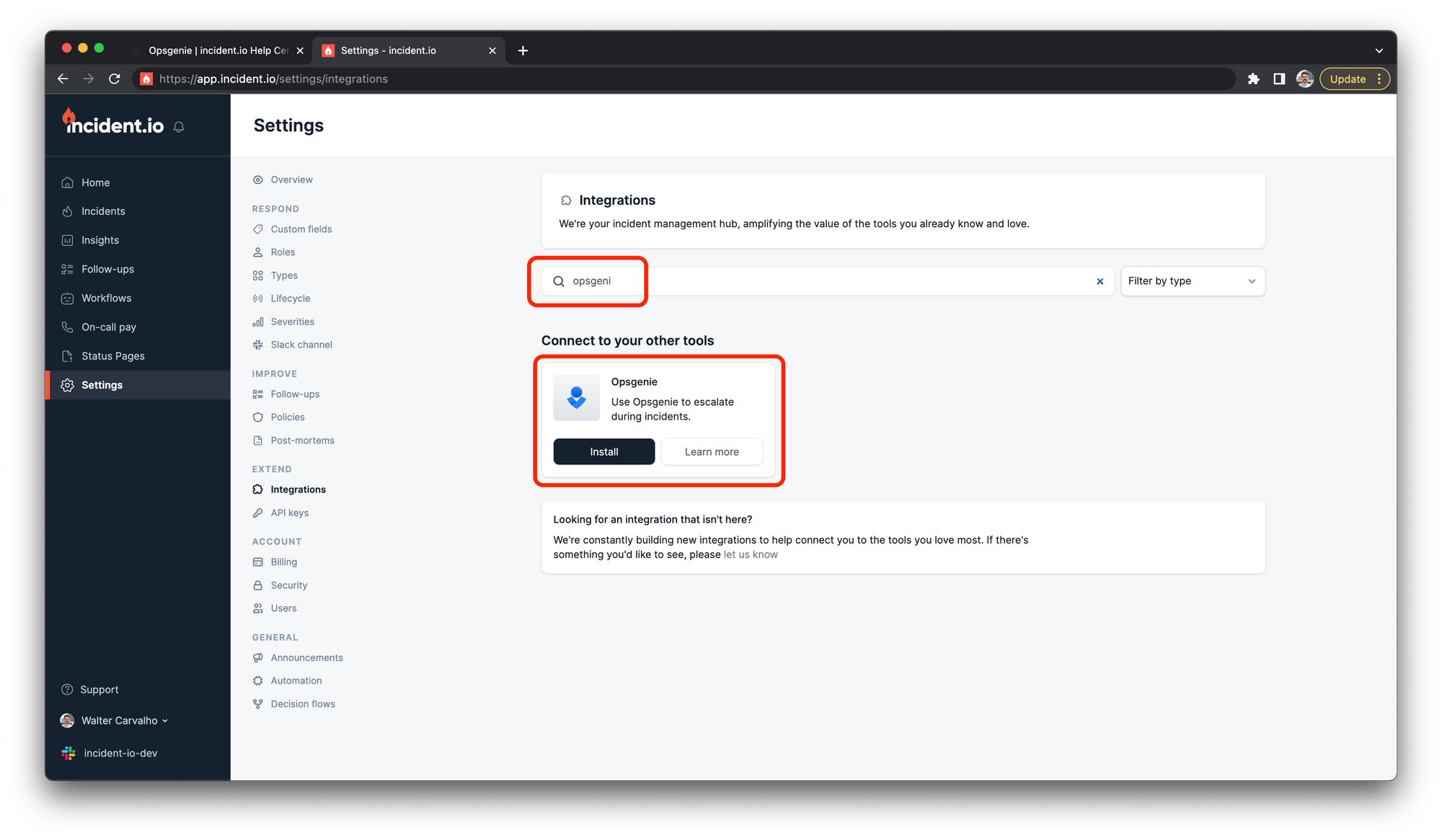
1. **Go to Settings >** [Integrations](https://app.incident.io/~/settings/integrations)
2. **Press Install next to Opsgenie**
 3. **Fetch your API key from Opsgenie**
You'll need to create an API key by heading to the settings page of [your Opsgenie account](https://app.opsgenie.com/auth/login).
You can find this by heading to **Settings** and then scrolling down to **API key management**. The page will look something like this:
3. **Fetch your API key from Opsgenie**
You'll need to create an API key by heading to the settings page of [your Opsgenie account](https://app.opsgenie.com/auth/login).
You can find this by heading to **Settings** and then scrolling down to **API key management**. The page will look something like this:
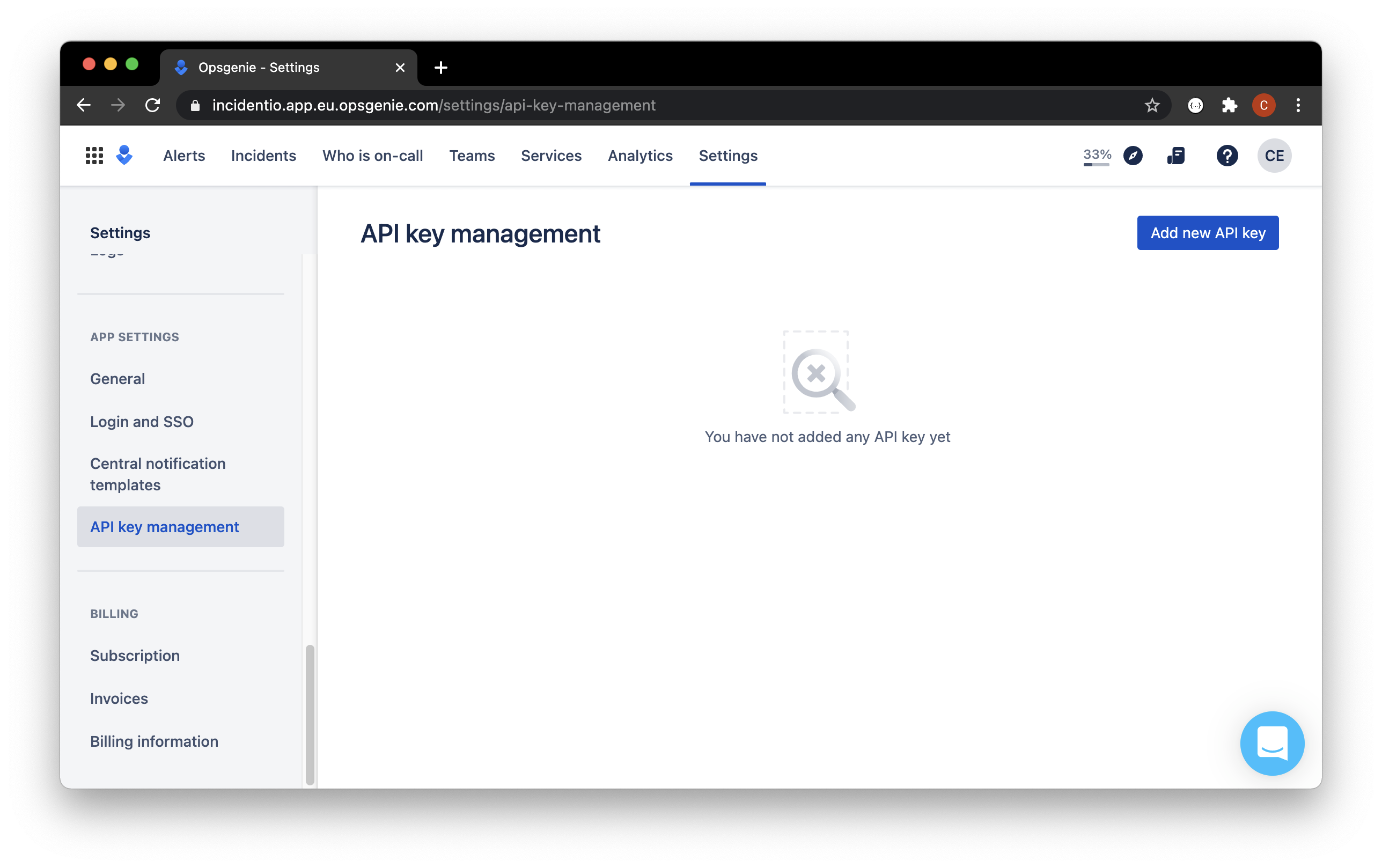 Click *Add new API key*
* Call it "incident.io"
* Set access rights:
* We require Read, Create, Delete, Update and Configuration access
* We require a **Global integration** API Key
* We don't delete resources that aren't managed by incident.io
* We will create 2 integrations one of type `API` and another of type `Webhook`: we need the deletion permission so that we can clean up any resources we create if you were to uninstall the Opsgenie integration
Click *Add new API key*
* Call it "incident.io"
* Set access rights:
* We require Read, Create, Delete, Update and Configuration access
* We require a **Global integration** API Key
* We don't delete resources that aren't managed by incident.io
* We will create 2 integrations one of type `API` and another of type `Webhook`: we need the deletion permission so that we can clean up any resources we create if you were to uninstall the Opsgenie integration
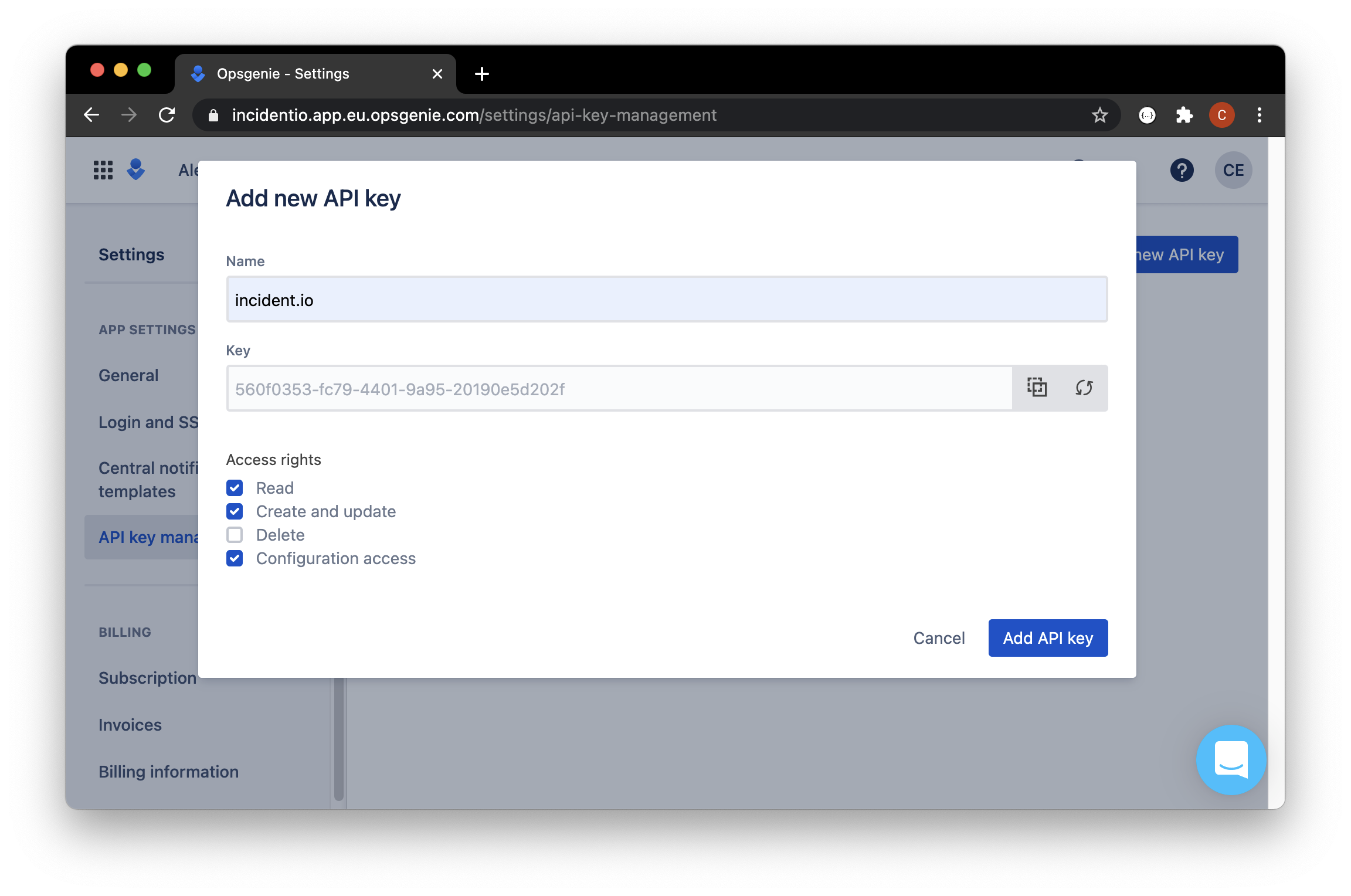 Copy the key to your clipboard.
4. **Paste the API key** from your clipboard into the incident.io modal
Copy the key to your clipboard.
4. **Paste the API key** from your clipboard into the incident.io modal
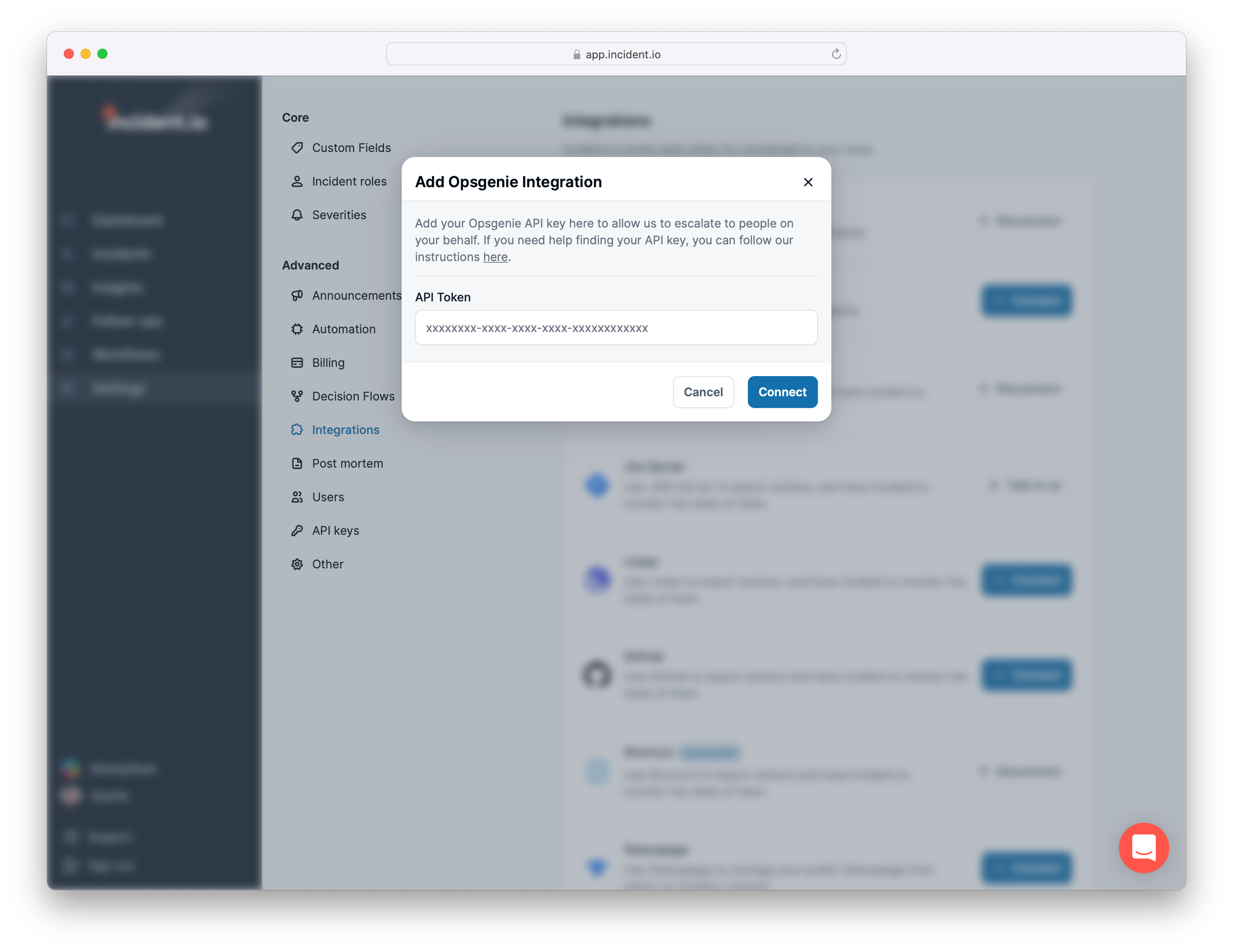 Hit Save, and you're all set up with Opsgenie!
***
## Escalating an incident
Just head over to the incident's Slack channel and hit `/incident escalate`.
**Who can I page?**
* *A team* : we'll use the settings you've defined for the team to page whoever's on-call.
* *Any user on Opsgenie* : sometimes, you know that special someone that can help you out when you get stuck. Escalate to them directly, and bring them in to help.
* *Both the above at once!* In the middle of a particularly gnarly incident? You can page multiple teams and individuals all at once
Hit Save, and you're all set up with Opsgenie!
***
## Escalating an incident
Just head over to the incident's Slack channel and hit `/incident escalate`.
**Who can I page?**
* *A team* : we'll use the settings you've defined for the team to page whoever's on-call.
* *Any user on Opsgenie* : sometimes, you know that special someone that can help you out when you get stuck. Escalate to them directly, and bring them in to help.
* *Both the above at once!* In the middle of a particularly gnarly incident? You can page multiple teams and individuals all at once