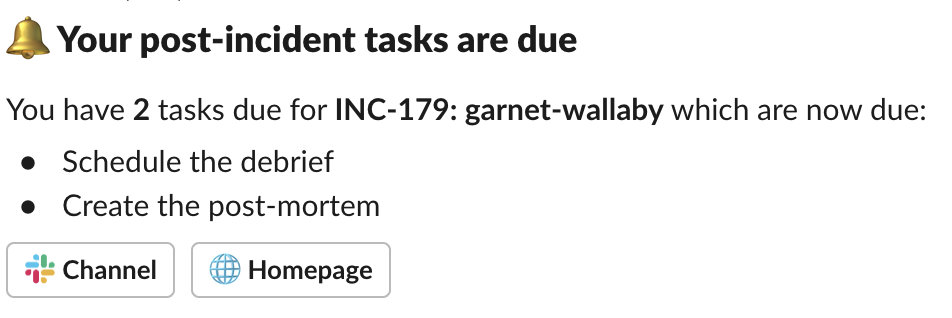
Create the postmortem which must be addressed.
While often not as urgent as solving the incident itself, the post-incident flow ensures you have recorded the right timestamps, fields, and learnings while the incident is still fresh in people’s memories.
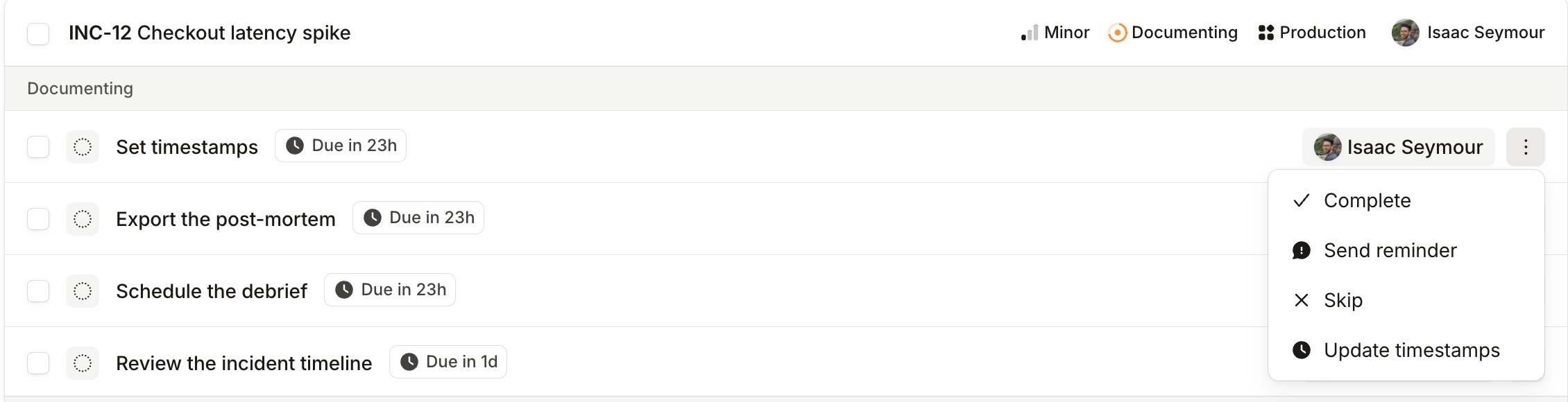
Due dates set expectations about when each task should be done, so people know what to pick up next.
Deciding on a due date
Choose a post-incident flow, edit one of its tasks, and look for the due date section. Set an expression powered by incident fields and your own catalog of custom fields, so that different kinds of incident get different deadlines. In this example we’re saying we want the post-mortem to be completed as soon as possible if the incident is of aCritical severity, otherwise you can take a bit longer:
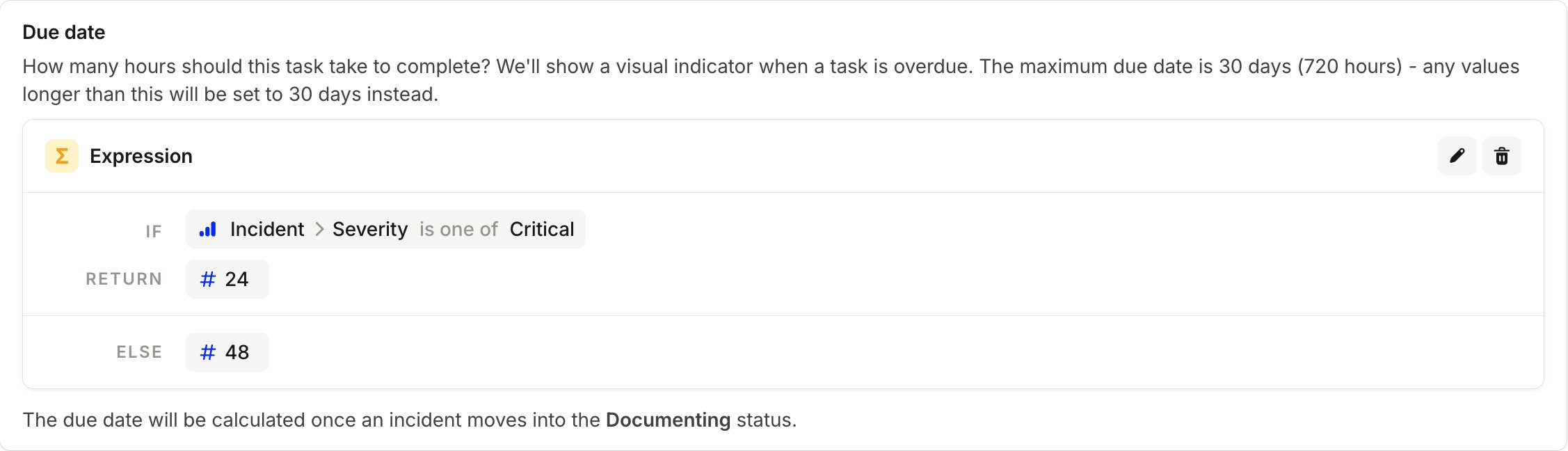
What does the due date do?
A due date is set in hours, and the clock starts when the incident enters the status that the task belongs to. Tasks in your first post-incident status get their due dates as soon as the incident enters the flow. Tasks in later statuses stay undated until the incident reaches them, so a slow first status doesn’t burn through the time you allowed for the second. Within the UI you are able to see when each task is due, and who it is currently assigned to. When a task becomes overdue it will be highlighted in the UI: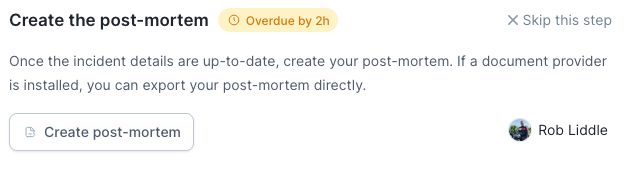
Automatic and manual reminders
If you are on our Pro or Enterprise plans you will be able to send automatic reminders to users; simply enable the option within your post-incident flow settings. When a task assigned to a user becomes overdue we will send that user a gentle reminder as a direct message, on Slack or Microsoft Teams, so they can make sure they finish the task. We send one automatic reminder per task, at the point it becomes due, and we group a person’s tasks together so somebody with three overdue tasks gets a single message rather than three. Reminders only go to the assignee, so a task with nobody assigned won’t produce one. Set a default assignee so every task has somebody to remind.