

- IF Affected Service is Payments:
- Escalation Team = Payments Team
- ELSE IF Affected Service is Onboarding:
- Escalation Team = Onboarding Team
- ELSE:
- Escalation Team is not set
Escalation Team in any step that expects that type. So, we could pair that with an Escalate to PagerDuty step that uses the Escalation Team.
Defining an expression
- Open Workflows in your dashboard and create or edit a workflow.
-
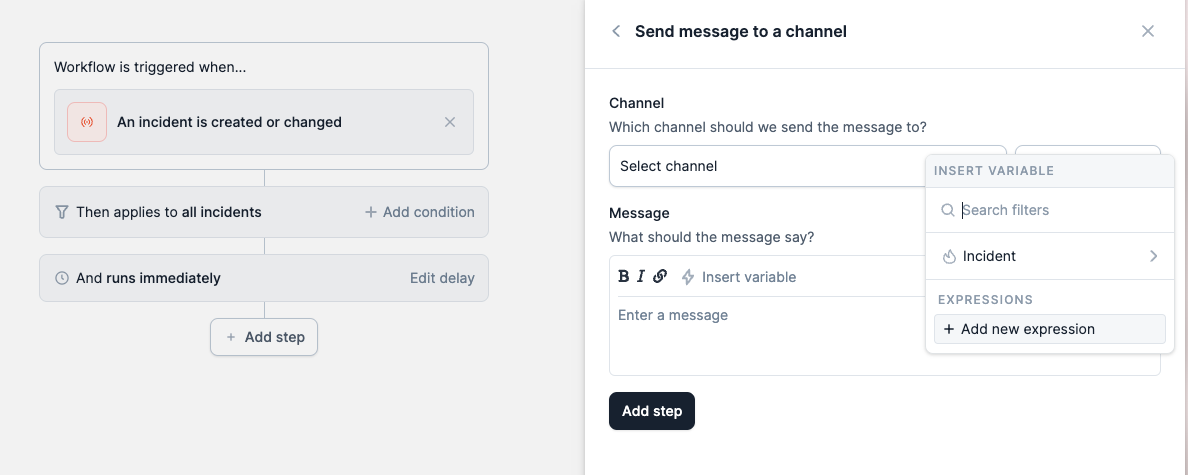
Navigate to the Workflow step where you want to use an expression, click “Use a variable” and then
Add new expressionto begin creating an expression.
- Choose which type of expression you require.

- In this example, we’ll use “If… else…”. Give your expression a name. This should be something short that suggests what the expression results in (e.g. Escalation Service, or Mailing Lists).
- Choose a return type. This will decide what kind of thing your expression will return (e.g. a Slack Channel or some text).

- Choose whether or not your expression will return multiple values:
- Please note that not all conditions and steps will accept multiple values. For example, the ‘Send message to Slack Channel’ step expects one single channel. If you choose to return multiple items for a ‘Slack Channel’ expression, then it won’t be available in the ‘Send message to Slack Channel’ options.

- Define your conditions and the things you want to return when those conditions are met.

- Use the ELSE row to define what happens when none of your conditions are met. Pick a default value, or leave it empty to return nothing. If you return nothing and then use the expression in a step that needs a value, we’ll skip running the rest of the workflow from that step.
-
Click
Addto finish creating your expression. - Continue with creating the rest of your workflow. When you create a condition or add a step that expects something matching the type you’ve defined, you should see it in the dropdown options.
