Bring customer and account context from Salesforce into every incident.
Using our Salesforce integration, you can attach your customer accounts to incidents in only a few clicks, enabling smarter workflows and making data analysis easier and more impactful. You can also do powerful things like:
Send an email to senior managers when a high-revenue customer is impacted by an incident
Add the relevant Customer Success Manager to an incident when one of their customers is impacted
Remind an incident channel when there’s an open opportunity for a prospect that might be impacted by an incident
Before configuring the integration, make sure that you have an Account List configured in Salesforce so that you can easily identify it when you go through our install process.
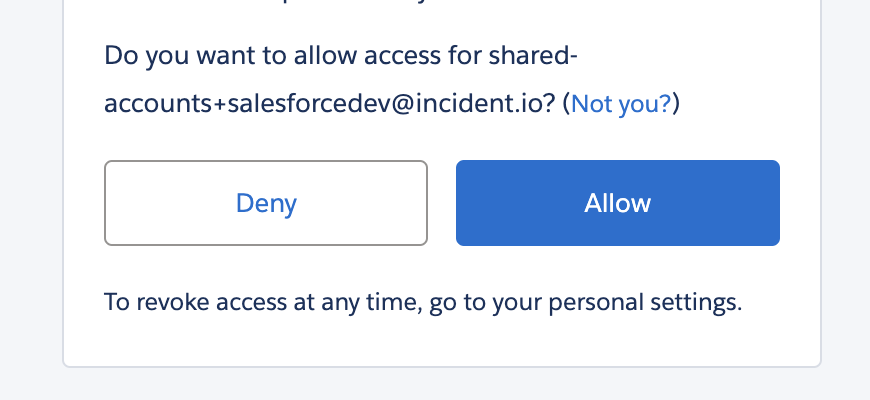
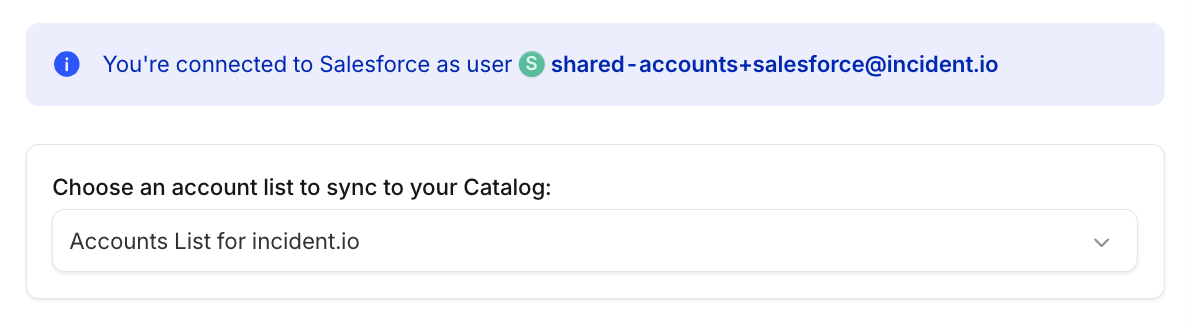
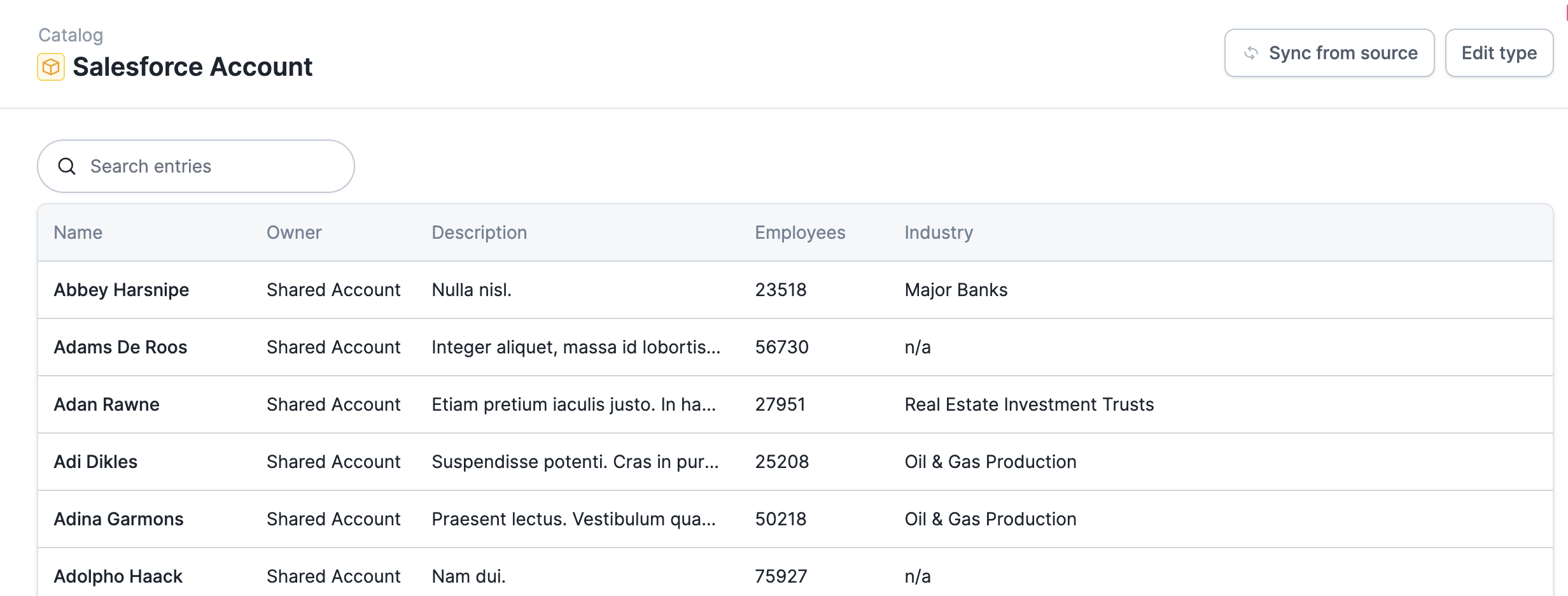
Click Connect and you’ll be redirected to Salesforce, where you can login as the user you’d like to connect with — or, if you’re already logged in, you’ll see a modal prompting you to authorize incident.io to access a variety of scopes within Salesforce.Click Allow, and you’ll be redirected back to your integration settings page to complete configuration. From here, choose an Account List to integrate with the Catalog.Note: Your integration will be considered incomplete until you do this.Once this is done, you’ll be able to see the list of your customers’ accounts as entries under the new Salesforce Account Catalog type.By default, we’ll synchronize:
Name
Owner
Description
Employees
Industry
The incident.io Catalog can be configured to also sync dynamic attributes. To do this, navigate to the desired type in Nexus → Catalog, e.g. Salesforce Account, click Edit catalog attributes and then click Import from Salesforce.Note that in order for incident.io to successfully sync these dynamic attributes the attached service account must also have permission to read them.The integration is read-only, so only read permissions are required for all attributes.Also note that you can only sync one Account List, with a limit of 50,000 accounts that can be synced from this list.
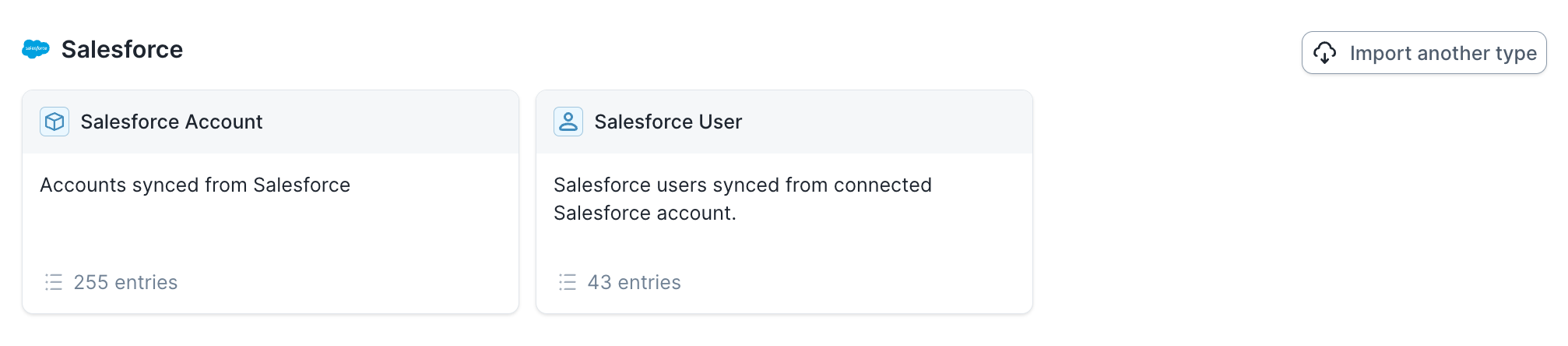
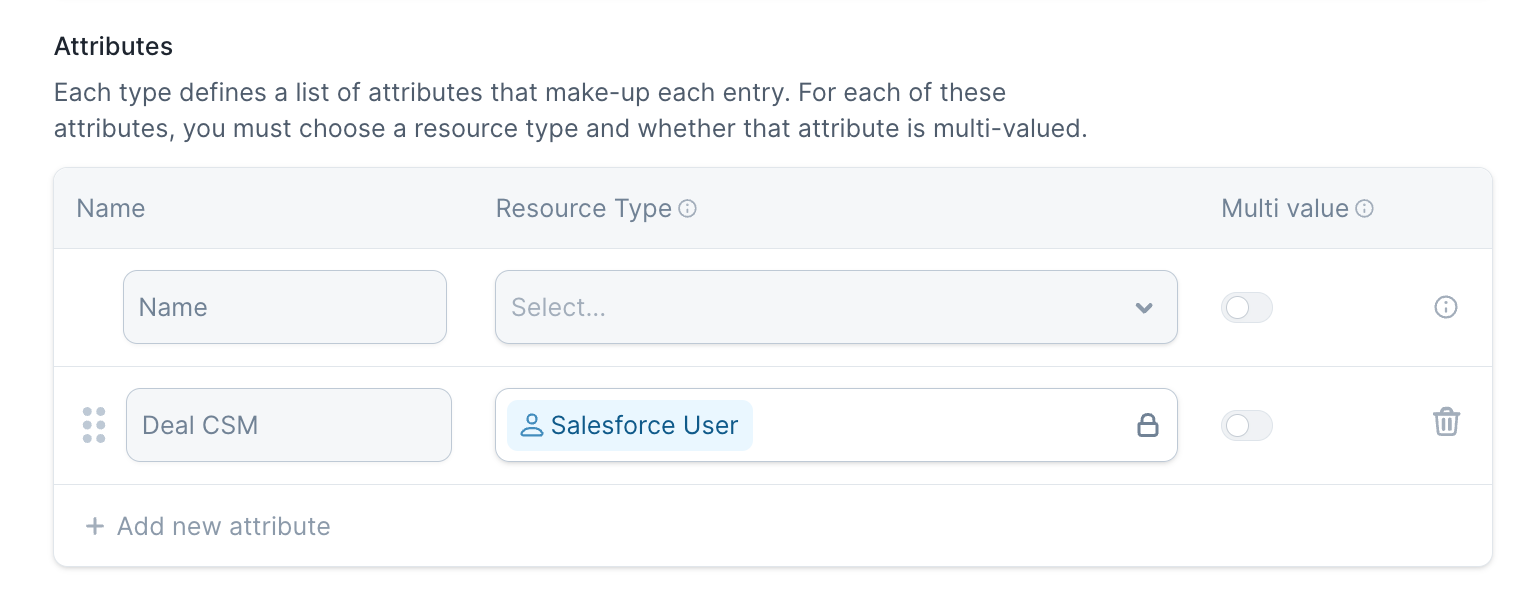
Once you’ve set up the basic Salesforce integration, you can choose to add Salesforce custom fields, as well as more Salesforce objects like Contact or Opportunity.Salesforce object types now appear on their own once the integration is connected. Open Settings → Integrations → Salesforce and check the Catalog Types list in the drawer to see which types you have:After a few minutes, the new Salesforce object will load with the relevant entries. To add more Salesforce fields, hit Edit catalog attributes and then Add attribute:
We’re launching an app for Salesforce Service Cloud that lets support agents view active incidents and link cases to
incidents directly inside Salesforce. Reach out to your account team to get started.
Was this page helpful?
Assistant
Responses are generated using AI and may contain mistakes.