We use your contact methods specified in your notification preferences to notify you of escalations and upcoming shifts. To add a contact method on another user’s behalf, you can navigate to their settings from the team members page and edit their preferences.
Adding a phone number for a responder in Mainland China has an extra constraint — the number must be added from outside Mainland China. See SMS and voice in China for the details.
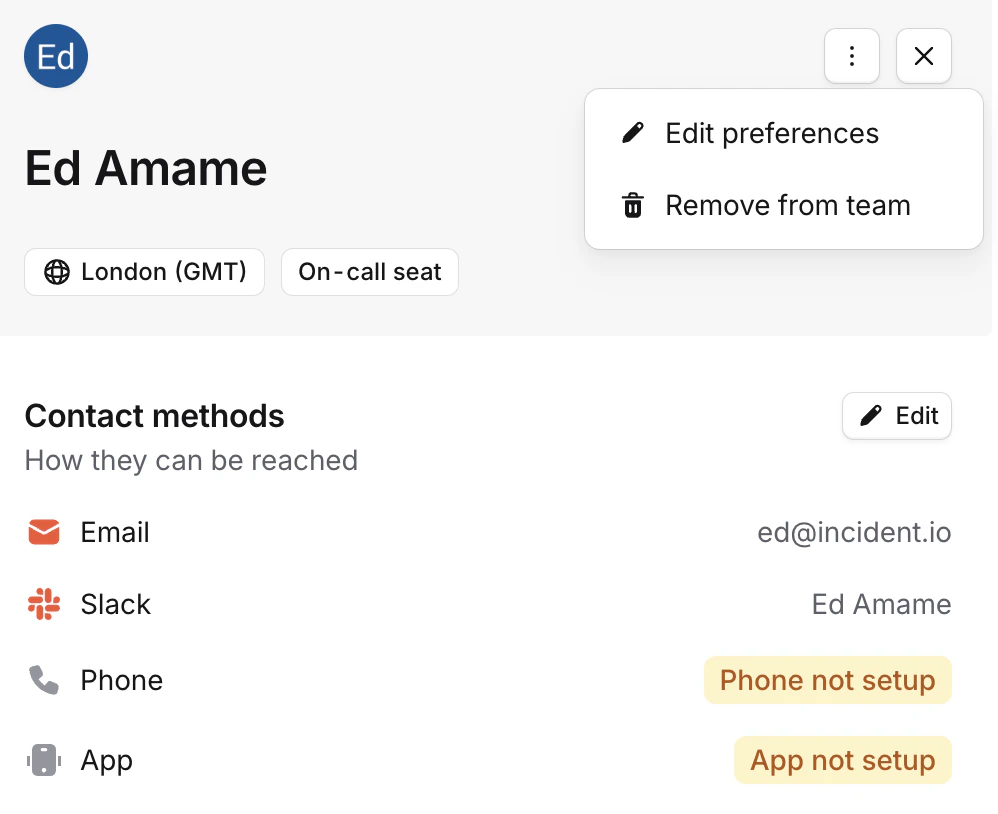
A team member's panel with the menu open on Edit preferences, above their contact methods You will only see this option if you have the Manage user notification preferences permission. All admins have this permission by default: this can be configured in Settings > Permissions.
You can configure this permission globally, add it to a custom role, or configure it at the team level. Find out more about custom roles and team roles in these help center articles.
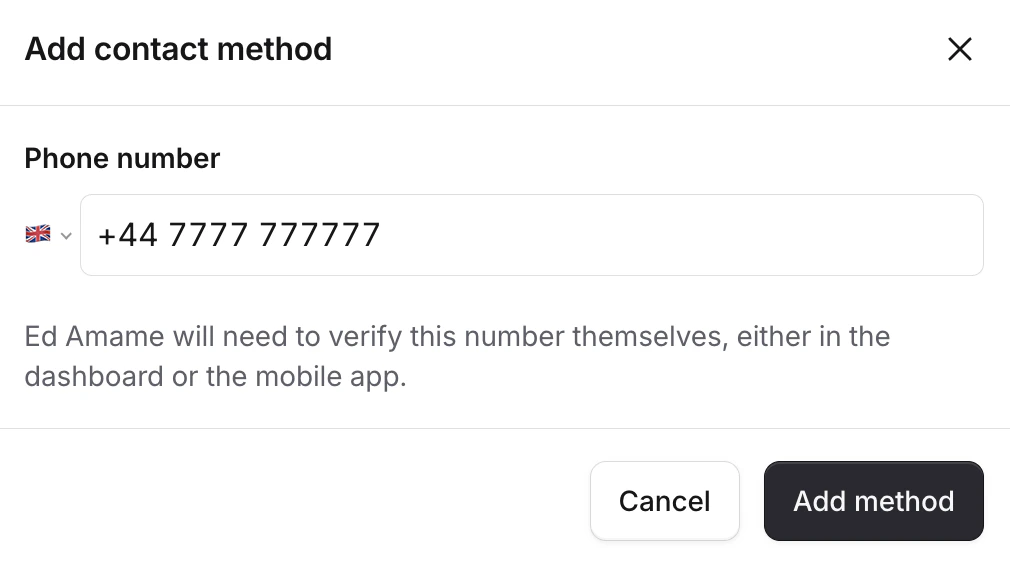
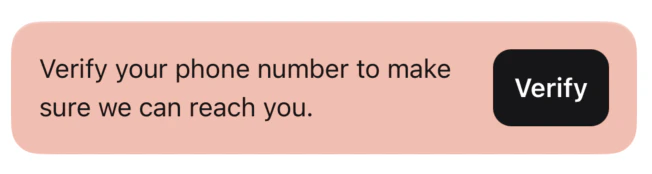
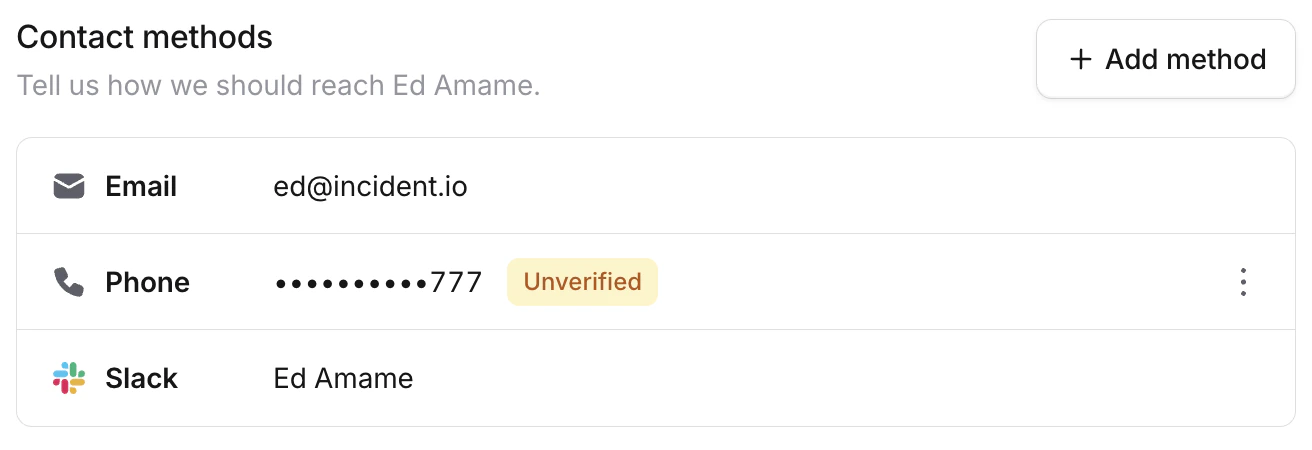
You can then add a new contact method, e.g. a phone number. This will not attempt contact with the user automatically, and they will need to verify the method themselves before we can reach them. Add contact method dialog with a phone number entered and an Add method button If a user has an unverified phone number and has the mobile app installed, then they will see a banner on the home page. This will direct them to complete verification. The current verification status of contact methods is visible from the team members page and the user’s notification preferences page. A mobile app banner reading Verify your phone number to make sure we can reach you Contact methods list with an Unverified badge beside the phone number