

Download our mobile appIf you’d like the best possible experience as a responder, download our mobile app here.
For responders in Mainland China, see Mobile app in China — Critical Alerts aren’t
available in the 事件incidentio app, so push notifications can’t bypass silent mode.
- Push notification
- Phone call
- SMS
- Slack direct message
- WhatsApp message
Phone calls + SMS
To receive phone calls and SMS that bypass silent mode and Do Not Disturb, you’ll need to save the incident.io contact and enable Emergency Bypass.- Add the incident.io contact card to your phone’s contacts
- Open the incident.io app, go to Settings → Contacts, and enable the incident.io contact toggle to keep the contact automatically updated
- Open the Contacts app and tap Lists in the top-left corner
- Select All Contacts — do not use the “incident.io” section (see note below)
- Find and open the incident.io On-call contact
- Tap Edit, then tap Ringtone
- Enable Emergency Bypass so calls ring even when your phone is silenced
- Repeat for Text Tone if you want SMS alerts to bypass silent mode
- Tap Done to save
Note for iOS 18+ users: You may see an “incident.io” section in your Contacts app. There’s a known Apple bug
where editing contacts from this section causes the screen to become stuck. Always edit from “All Contacts” instead.
We’ve reported this to Apple.
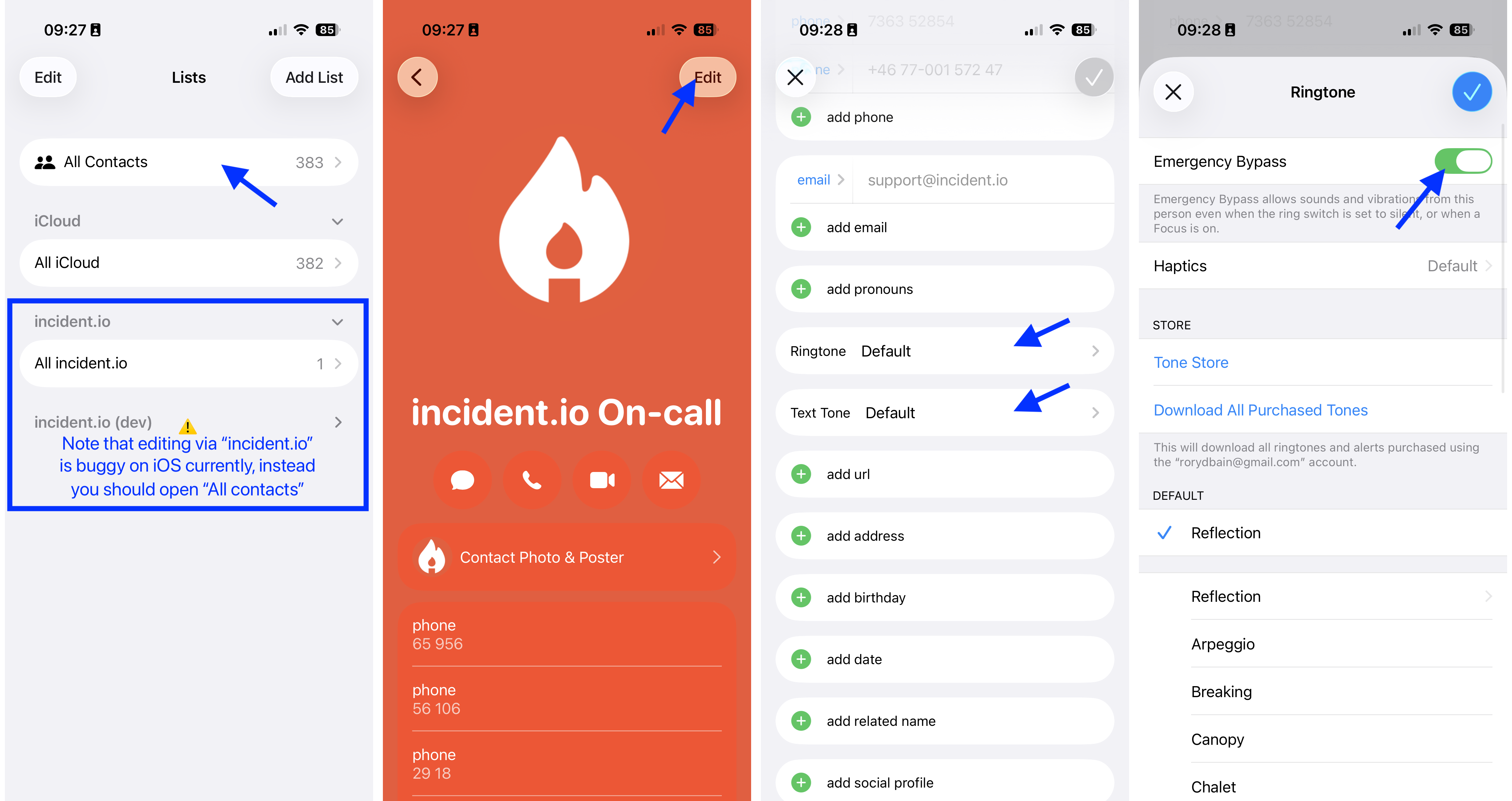
In some iOS versions the automatic contact can’t be edited, which means you may not set up DND bypass, so to work around this, we can create an editable version.If the Edit button still doesn’t appear, open another contact in the Contacts app, then return to the incident.io contact — the Edit button may then show up.
You can enable this by going to Setting → Contacts → Can’t set up Do Not Disturb bypass
Call screening
iOS can screen calls from unknown numbers before they reach you, using features like Screen Unknown Callers and Silence Unknown Callers. When these are on, an on-call phone call from an unknown number may be intercepted, sent to voicemail, or answered by an automated screening assistant instead of ringing your phone. This causes two problems for on-call:- You might miss the call entirely, because it never rings through to you.
- The screening assistant can interact with our call and register a keypress, which we may record as you acknowledging the escalation even though you never picked up.
- Save the incident.io contact card and enable Emergency Bypass, following the steps above.
- Confirm the incident.io On-call number is saved in your Contacts. Screening applies to unknown numbers, so a saved contact won’t be screened.
- Send yourself a test page while your device is locked to confirm the call rings through as expected.
Push notifications
iOS has a concept ofCritical notifications, which are push notifications that’ll make a noise, regardless of whether your phone is on silent, or if you are in sleep/do-not-disturb. The incident.io app supports these natively so as long as you agreed to these notifications during set up of the app, you’ll receive them. If you did not agree to them, you’ll see a warning on the home screen of the app.
To enable these notifications, open the Settings app on your phone, scroll down to incident.io, select Notifications and then enable critical notifications.
Please note that the following settings in iOS could interfere with push notifications:Announcing notifications: if you have toggled
“Announce notifications” in your incident.io app settings, sounds might go through connected AirPods or other devices
when your device is locked.Screen Time: if you have a time limit set on your device, iOS might not deliver notifications correctly. Consider
adding the incident.io app to your list of “Always on” apps.