How syncing works
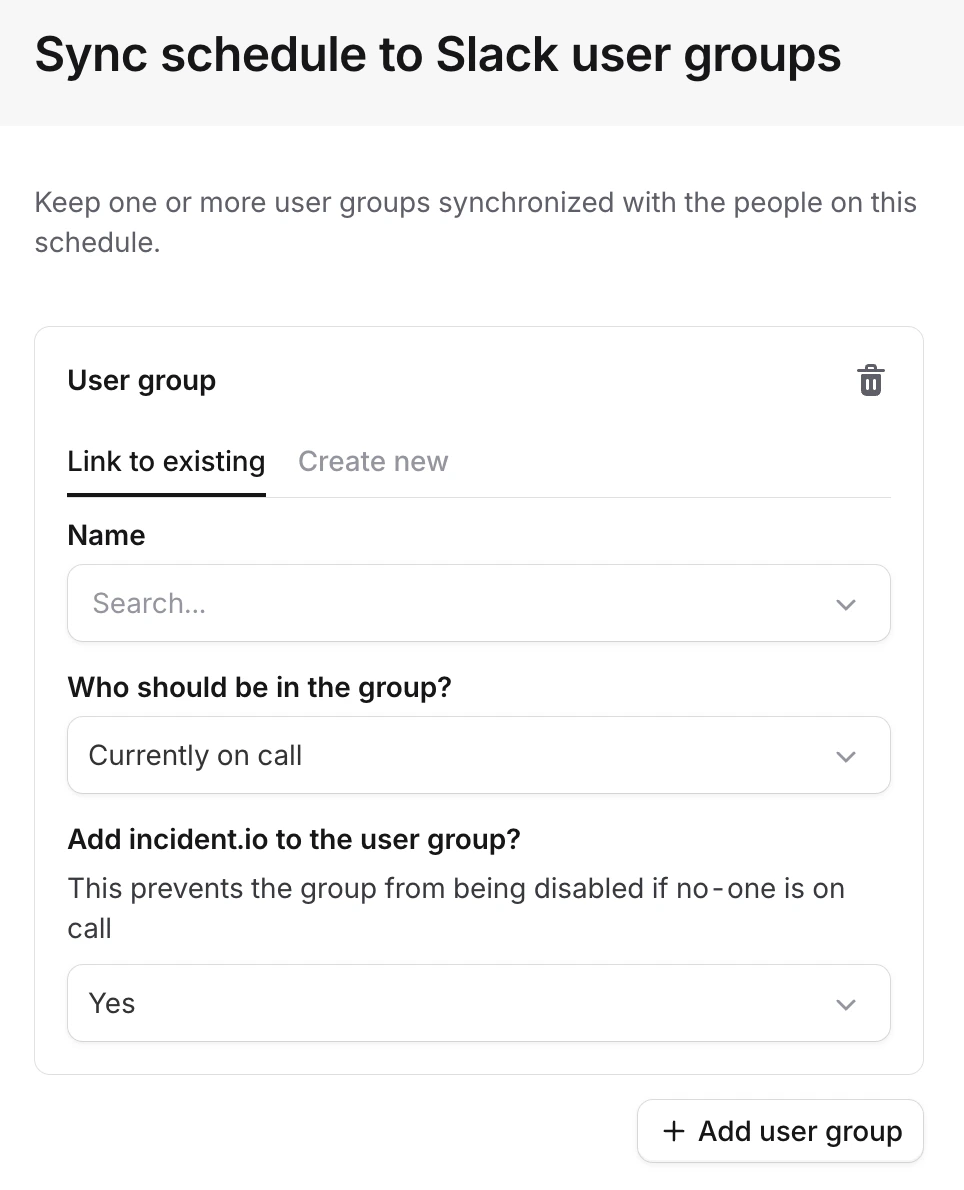
When you connect a Slack user group to a schedule, you choose what to sync:- All members -the group always contains everyone on the schedule
- Currently on-call -the group updates at each handover to contain only whoever is on-call right now
Common use cases
You can combine sync rules in any way that fits your team. Here are some common configurations:Dedicated on-call group
A single schedule syncs to a dedicated Slack user group for current on-call responders. Example: The Platform team’s schedule syncs to@platform-on-call. Mention the group to reach whoever is on-call right now.
Separate groups for roster and on-call
A single schedule syncs to two different groups: one for all members and one for current on-call. Example: The Platform schedule syncs to@platform-schedule (all members, for reaching anyone on the rotation) and @platform-on-call (current on-call, for urgent issues). This lets people choose whether they need everyone on the schedule or just whoever is on duty.
Combined on-call group
Multiple schedules feed into a single Slack user group, combining responders from all connected schedules. Example: A team with primary and secondary schedules wants a unified@on-call-team group containing both responders. Or, follow-the-sun coverage across regional schedules uses a single @global-on-call group that always contains whoever is currently on-call worldwide.
Set up user group sync
To connect a schedule to a Slack user group:- Navigate to On-call → Schedules and select your schedule
- In the top-right, select Connect Slack group
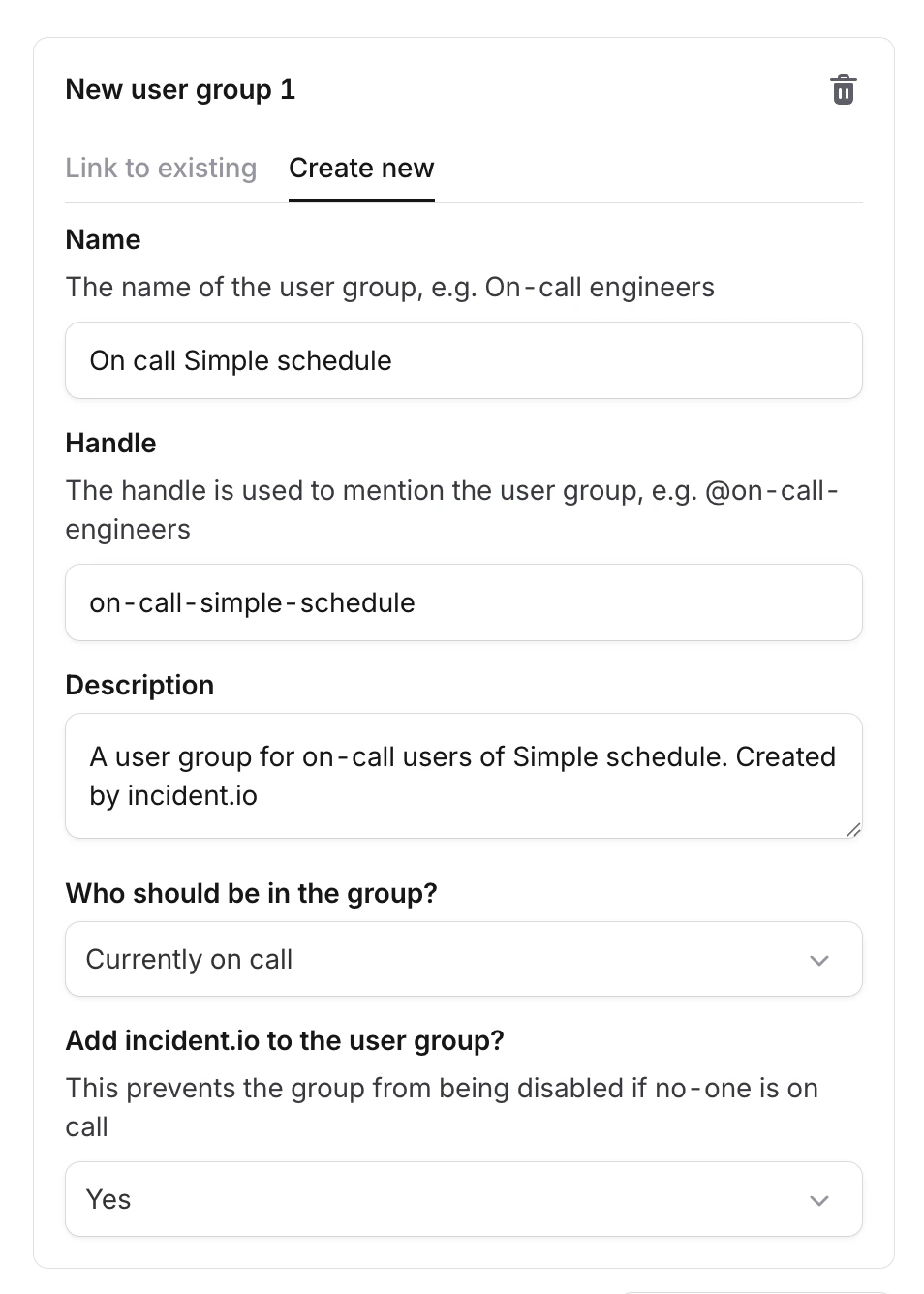
- Configure the sync rule: choose an existing Slack user group or create a new one
- Select Save
Managing shared user groups
When multiple schedules sync to the same Slack user group, any settings changes apply to all connected schedules.You need edit permission on all schedules connected to a shared group to update its settings. If you lack
permission on any connected schedule, you won’t be able to modify the shared group configuration.
Slack permissions
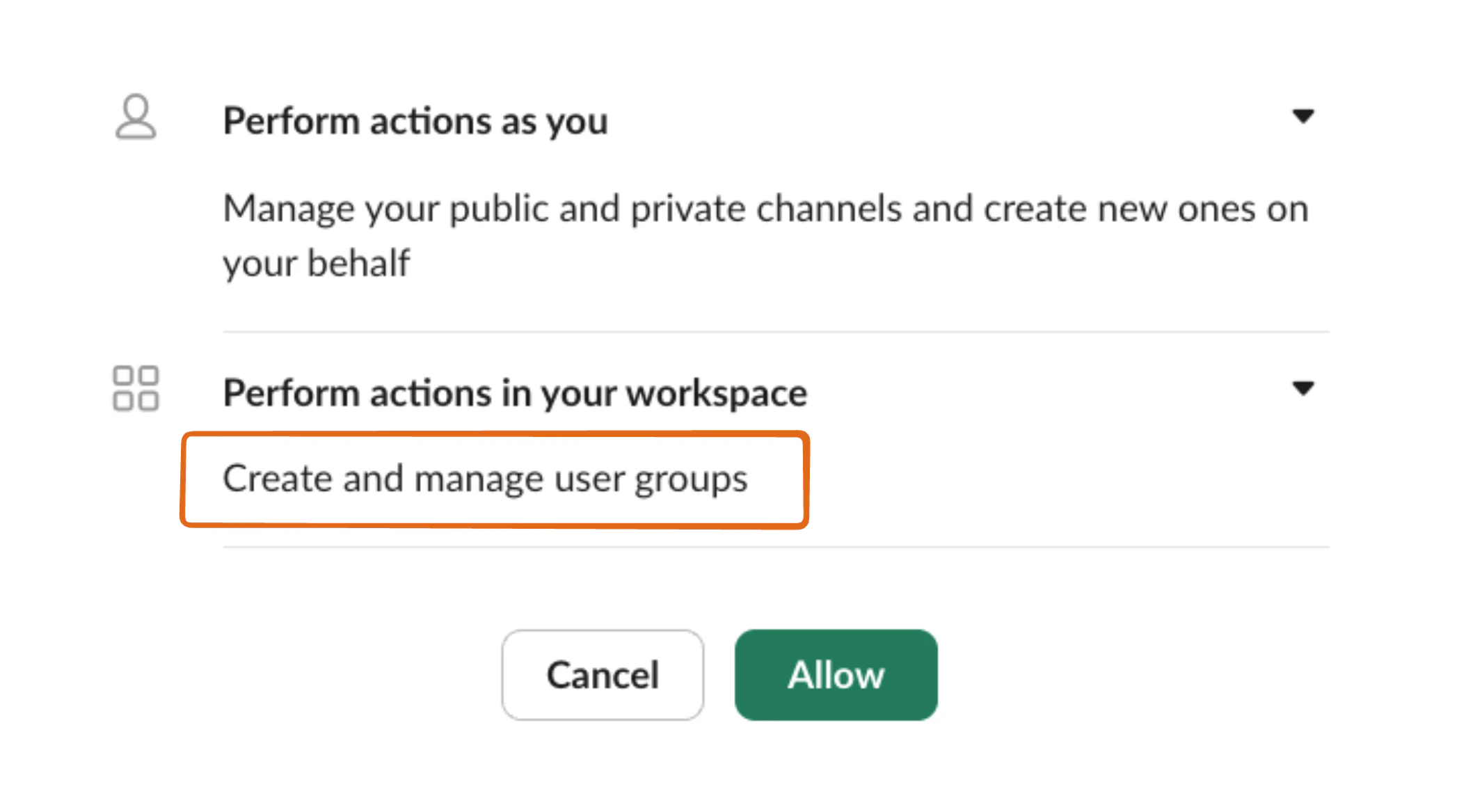
Slack restricts who can modify user group membership. By default, only Workspace Admins and Owners can update user groups, which doesn’t include the incident.io Slack bot. Choose one of these options to enable syncing:Option 1: Allow workspace members to manage user groups
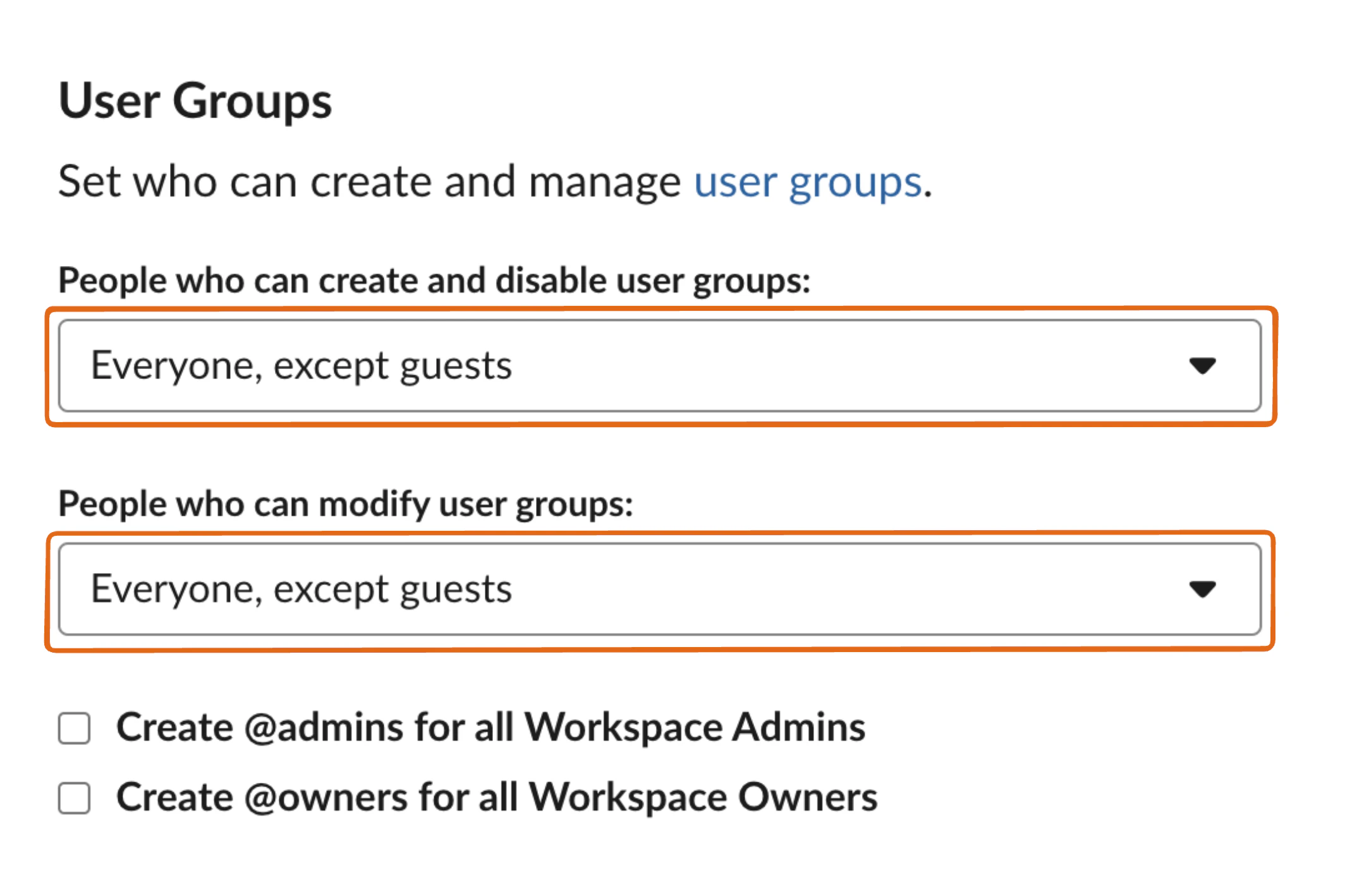
If your organization permits it, update your Slack workspace settings to allow all members to manage user groups:- Go to Slack user group restrictions
- Set both user group permissions to Everyone, except guests
Option 2: Use a privileged Slack account
If your organization restricts user group management to admins only, connect a Slack admin or owner account that incident.io can use to manage user groups. Follow the steps in Set up privileged Slack access to connect an admin account.