

Introducing Catalog
The Catalog is a connected map of “everything” that exists in your organization that you can easily navigate and is available across features like Workflows, Insights, and Triggers to level up your incident response.Getting started with Catalog
The best place to get started is by following this hands-on lab session on YouTube.Integrating with an existing Service Catalog
Already using a Service Catalog? No problem! We support a number of Integrations.What can I do with Catalog?
Many things! Including, but not limited to:- Populating Custom Fields with Catalog data
- Automatic Custom Fields
- Using the Catalog in Workflows
- Powering your Status Page Sub-pages
Populating Custom Fields with Catalog data
Fed up with manually maintaining options for custom fields? When configuring custom fields, select “From a catalog type” as an option for how the field should be managed. This means that any updates made to a Catalog type will be updated in this custom field.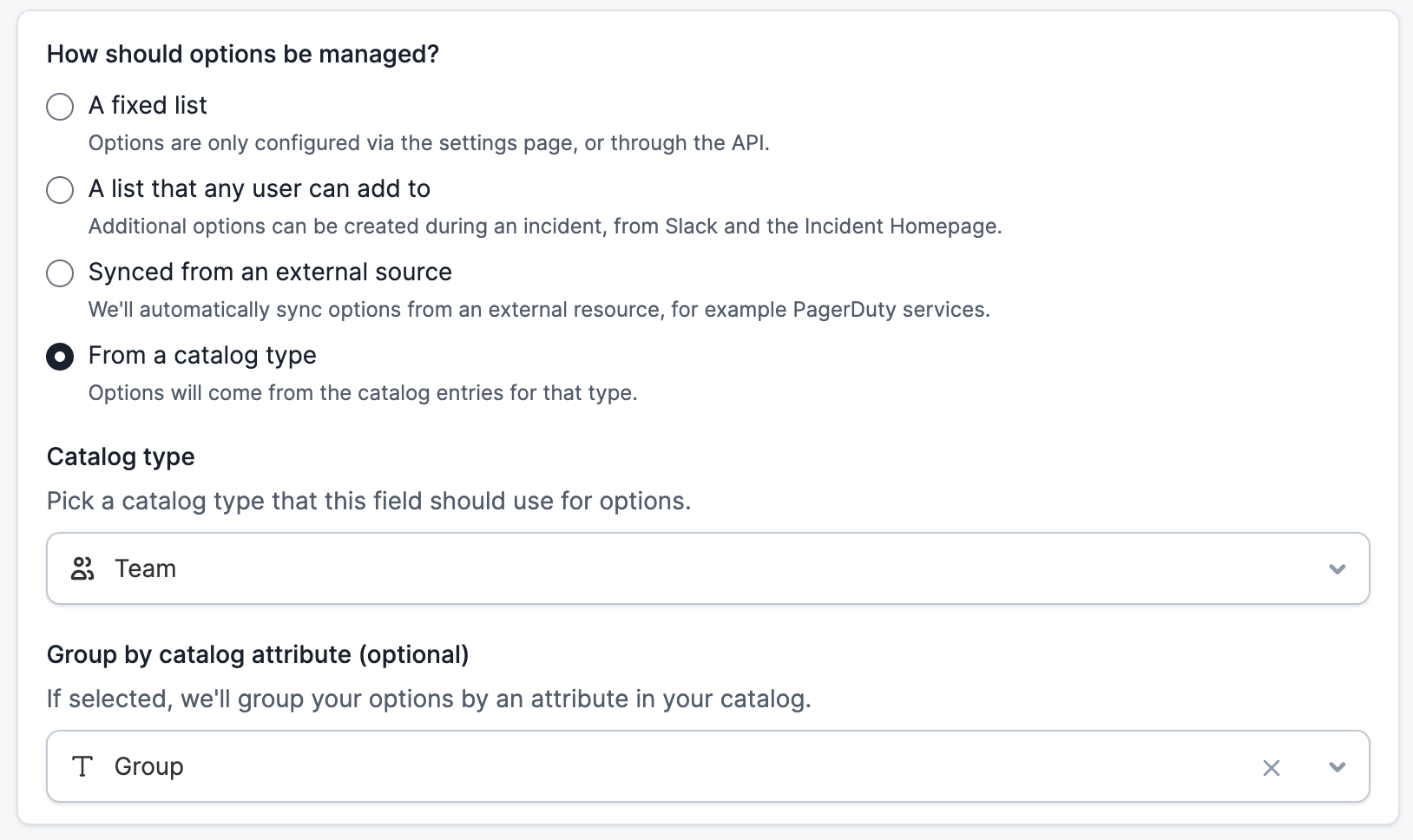

Automatic Custom Fields
Want to update the value of a custom field based on the value of another custom field? For example, when selecting the Affected Service, using the Catalog you could derive the Affected Team without having an Incident Responder select anything. When creating a custom field, select Set automatically. This replaces the Field type selector with an Add an expression button: you no longer pick a type, because the expression’s return type decides it. Click Add an expression, then choose Query on the Create expression chooser. (The other option, If… else…, returns a value that changes based on conditions.)This only works for fields backed by a Catalog type. On a custom field whose options you type in by hand, the
expression checkbox is disabled, because there is no Catalog to navigate from.


Using the Catalog in Workflows
Once you’ve set up custom fields for the relevant Catalog types, you can use those custom fields in Workflows. For example:- Escalate incidents to the right on-call engineers when certain business functionality is impacted.
- Invite Customer Success Managers to incidents when their customers are mentioned.
- Notify the executive team when an aggregate amount of revenue across impacted customers crosses a threshold.