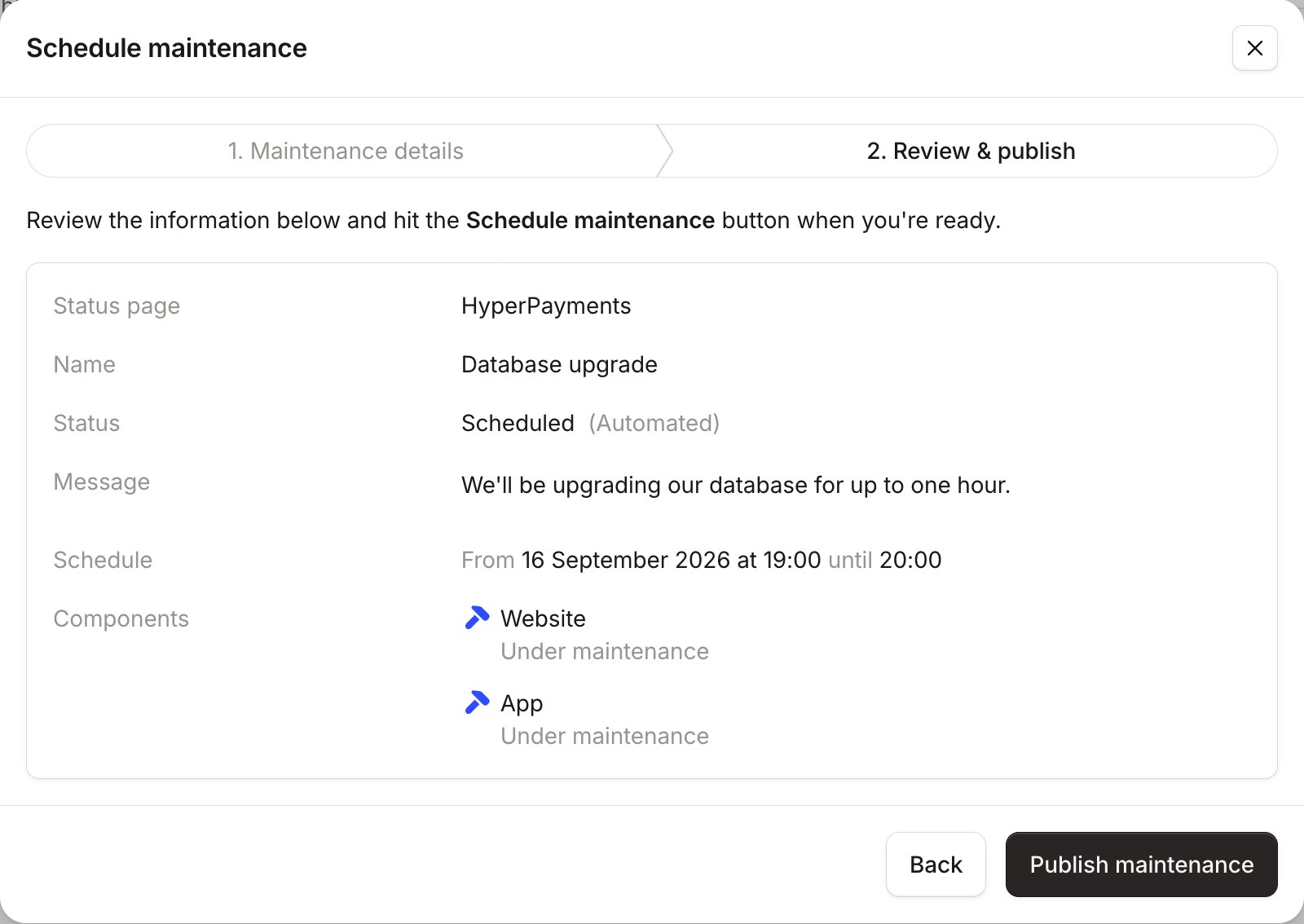
How do maintenance windows work?
A maintenance window is similar to an unscheduled incident, but with a few differences:- It must have a set time window which confirms when you expect components to not be working as normal.
- Scheduled maintenance windows appear in your status page in advance, to help your customers plan around it.
- Optionally, maintenance windows can progress to ‘in progress’ at the start time, and then to ‘completed’ at the end of the maintenance window. Automated updates will not notify your subscribers. If you disable this, you’ll need to manually update the status of the maintenance window when it is in progress and when it is completed.
How do I schedule a maintenance window?
Scheduled maintenance is only available for your public-facing status pages - internal pages cannot currently have
scheduled maintenance added to them.
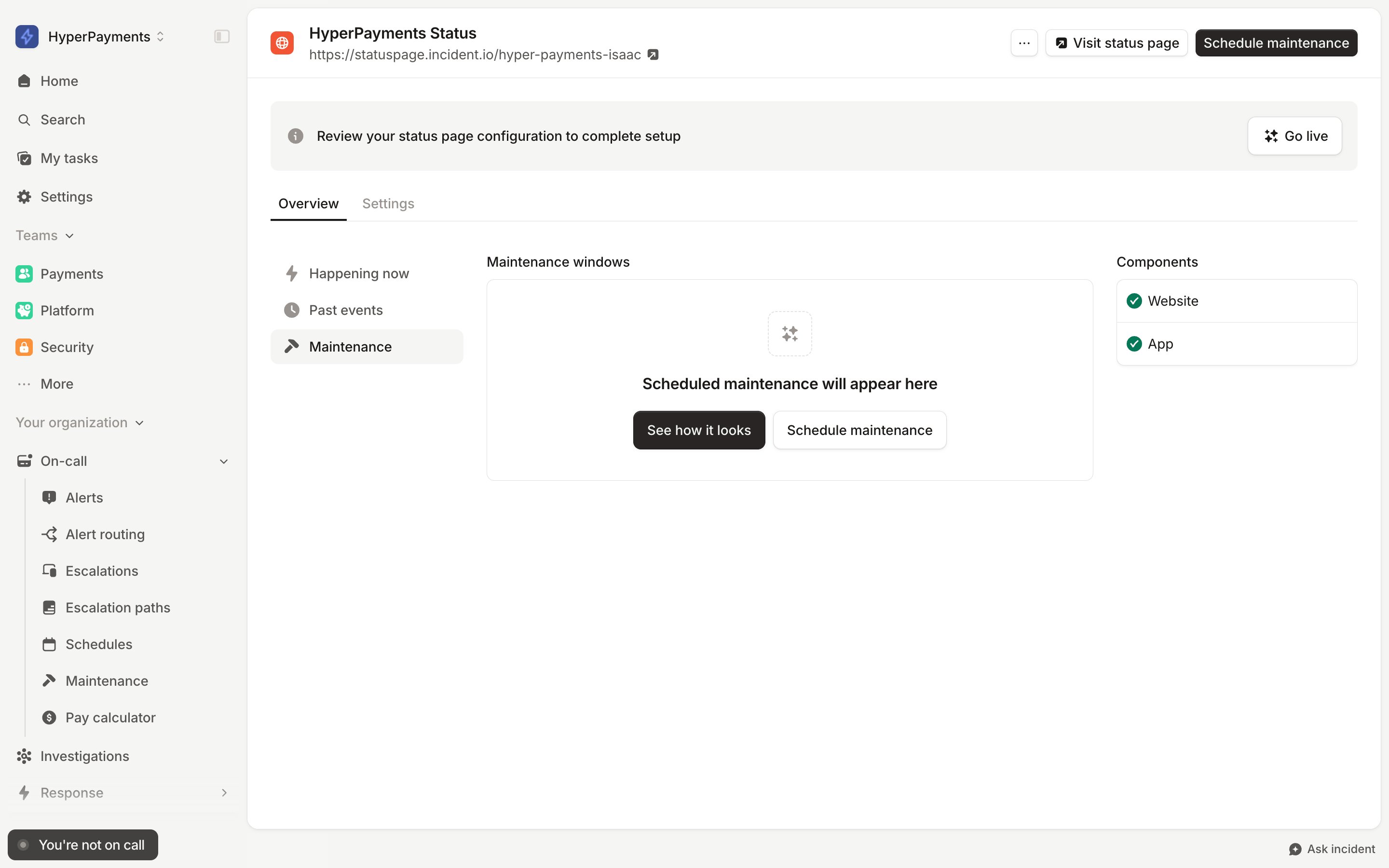
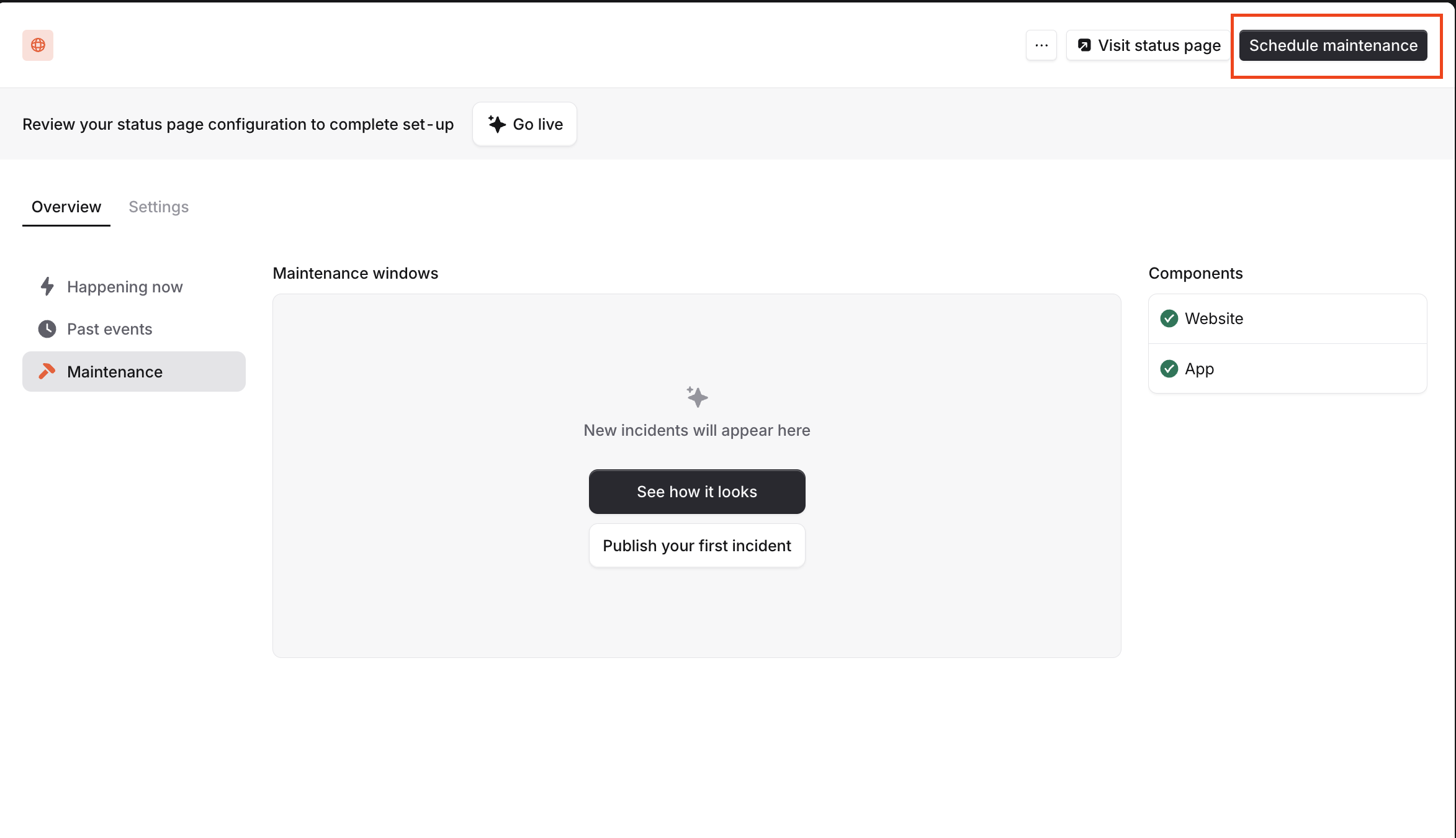
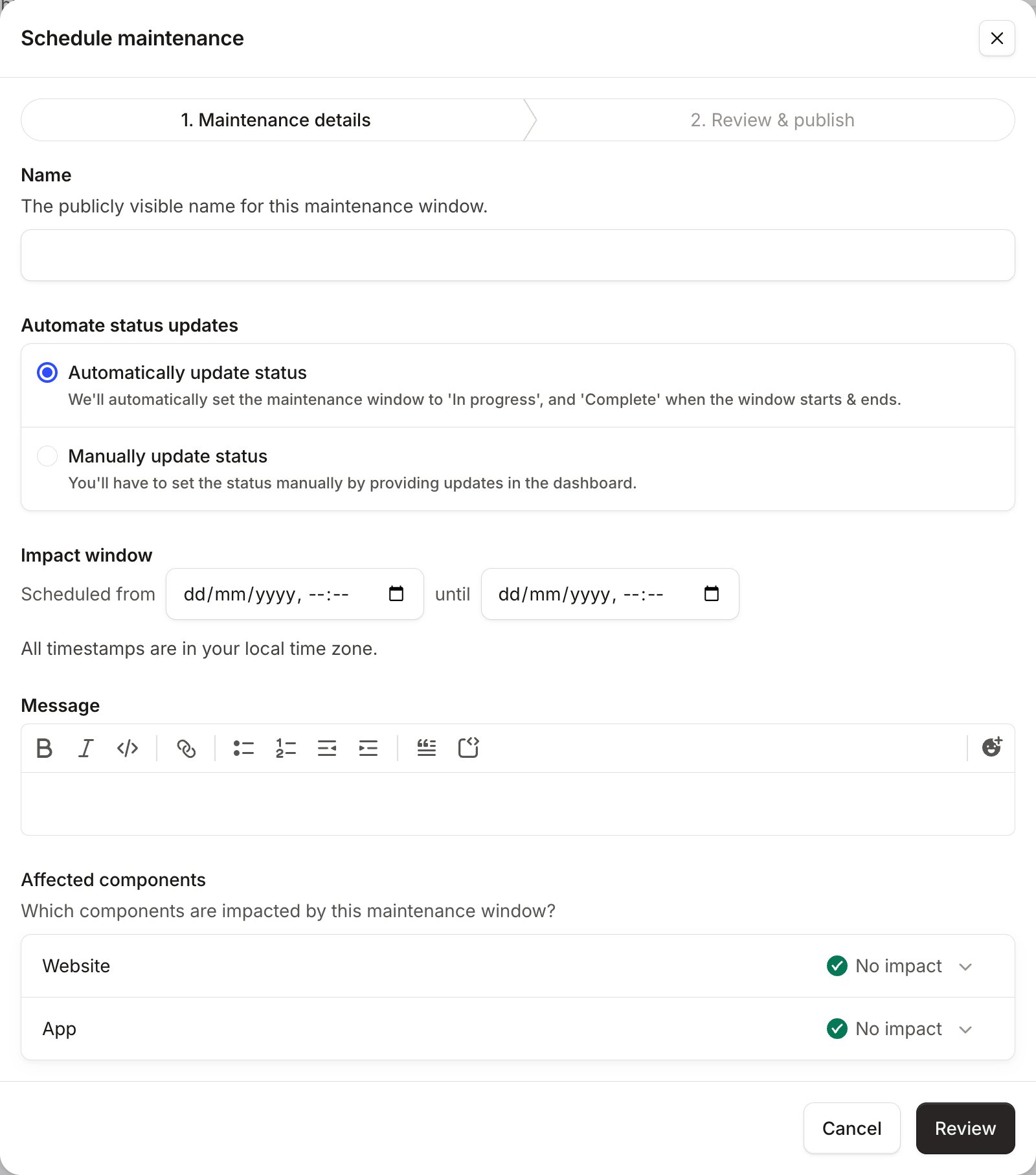
- First choose a name : we’ll use this anywhere that links to this maintenance window, and as the subject line in any emails to subscribers.
- Next choose whether to automate this maintenance.
- Now set the Impact window: the start and end time of the maintenance.
- The message is where you explain the anticipated impact of this maintenance event.
- Finally choose the Affected components.
As with an unscheduled incident, click ‘Review’ to double-check before you publish to your status page.