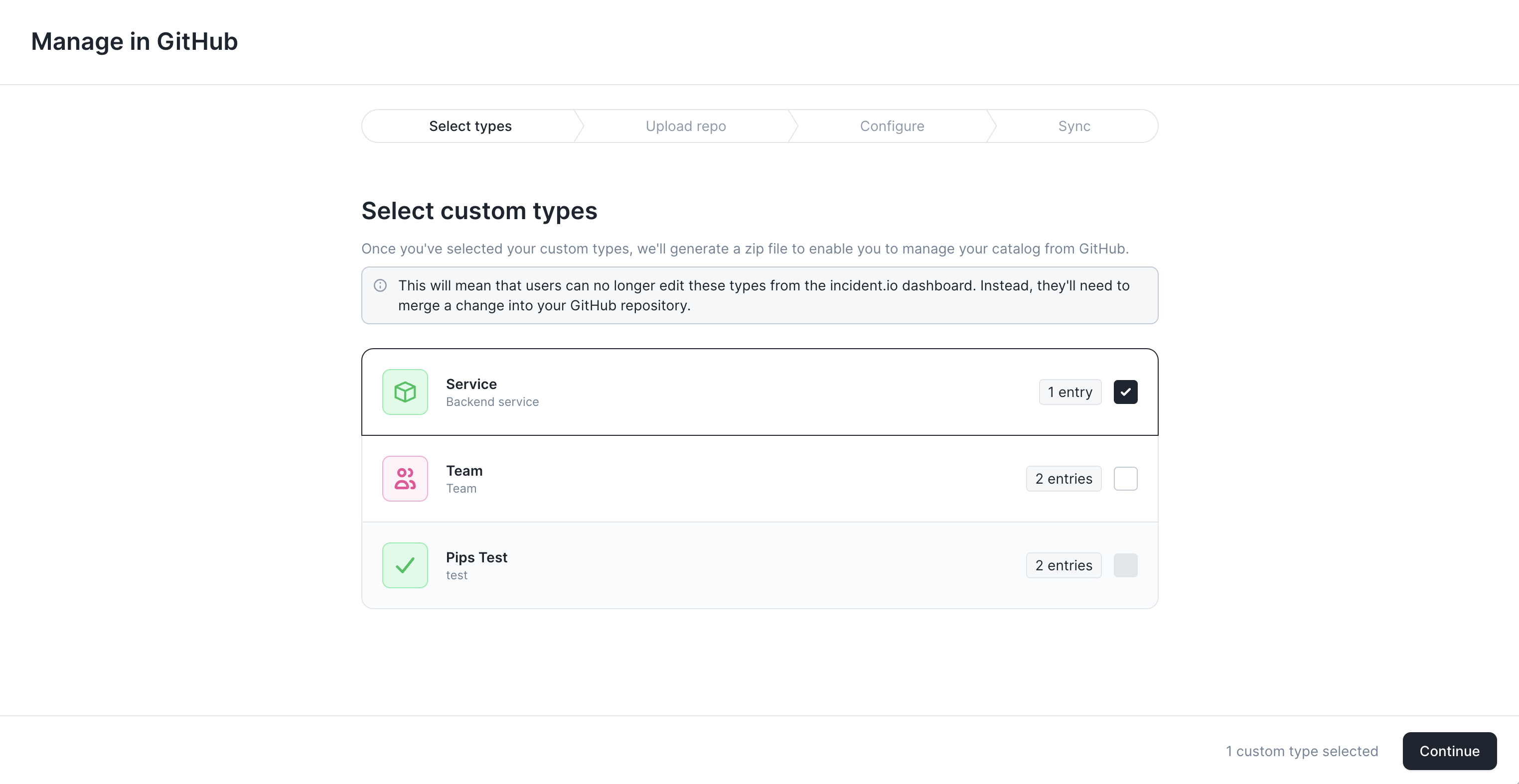
This feature is useful when you want to version control catalog types you’ve created in the incident.io dashboard. The Manage in GitHub wizard at the Select custom types step, with Service ticked This feature will generate all the files you need, and configure GitHub to automatically sync changes you make from the repository to the catalog in incident.io. Once you’ve configured a catalog type to be managed in GitHub, you’ll no longer be able to edit it through the dashboard.

Can I use it?

If you have access to custom types in the catalog, you can also use the manage in GitHub feature.

How do I use it?

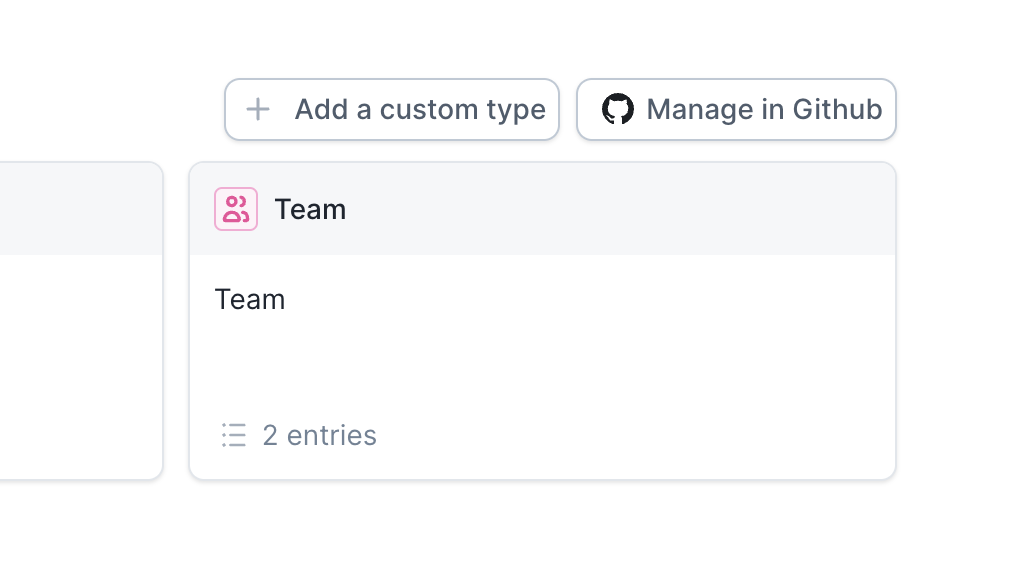
On the catalog homepage, above your custom types, there’s a “Manage in GitHub” button. Clicking it will take you through the process of configuring one or more catalog types to be managed in GitHub. The Manage in Github button above the custom types on the catalog homepage
How do I change catalog types once they’re managed in GitHub?

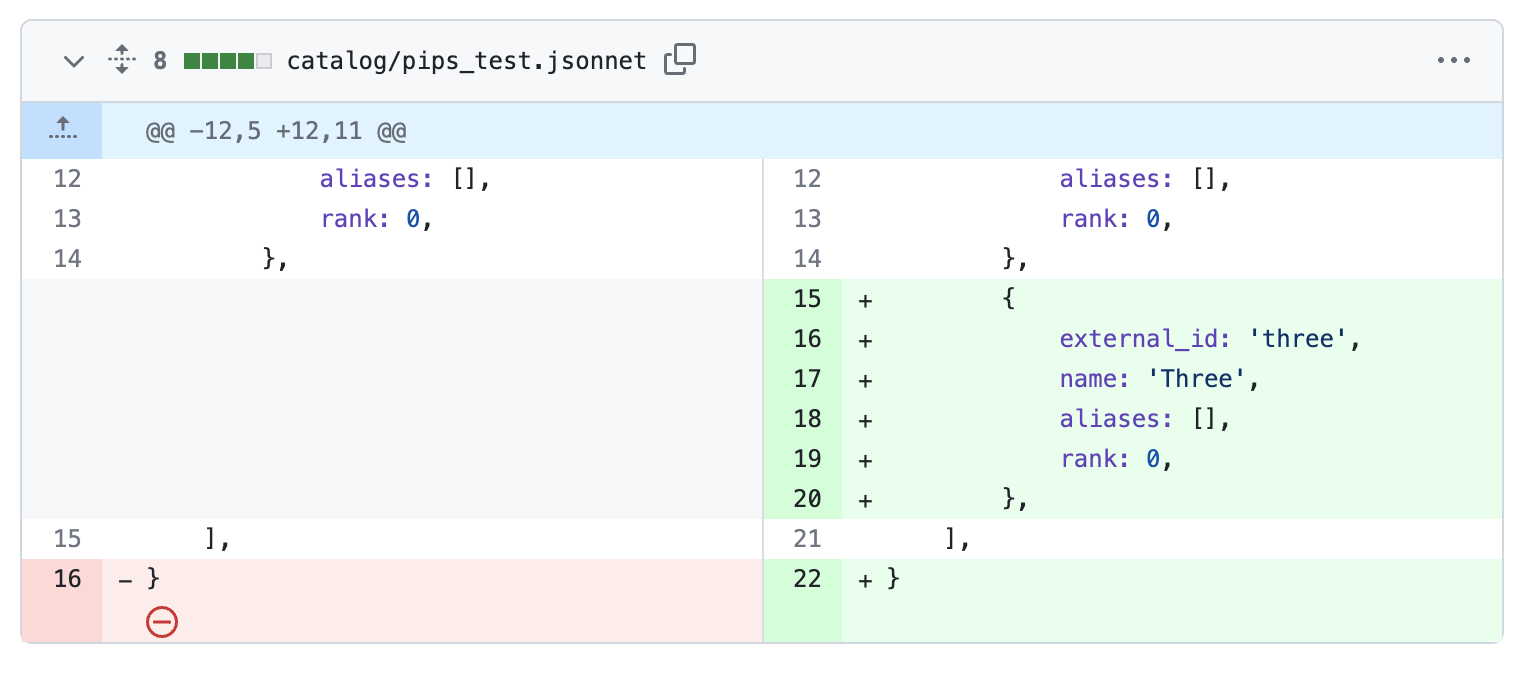
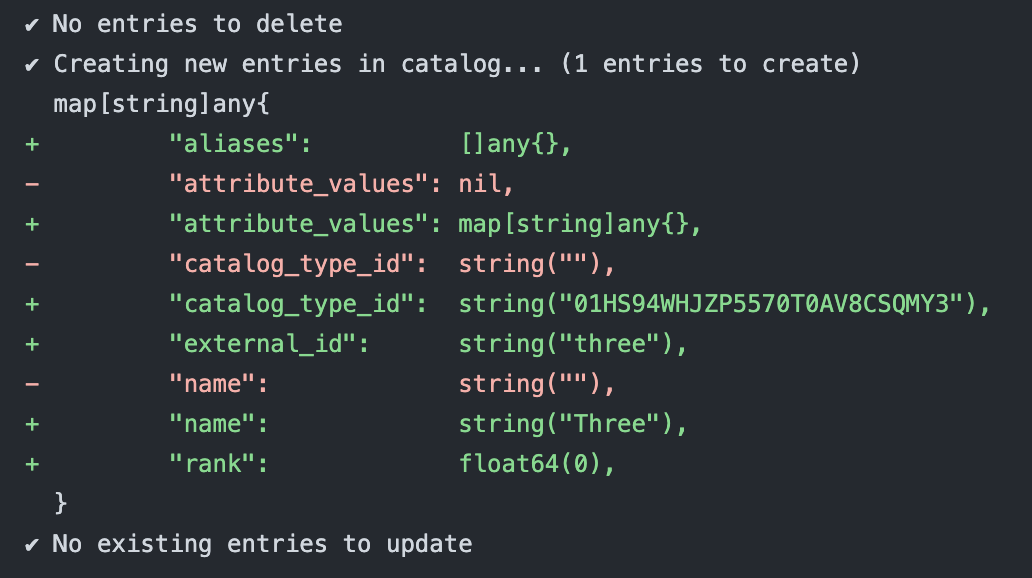
To change catalog types, edit the jsonnet files in your repository and open a pull request. A pull request diff on a jsonnet catalog file, adding a new entry called Three A GitHub action will run and show you the changes that will be made to the catalog. GitHub action output listing the catalog entries it will create, update and delete If you’re happy with the changes, merge the pull request and another action will run and sync the change to your incident.io catalog.
How does it work?

Under the hood, this feature uses our catalog importer. This is a flexible tool for syncing external data in to the catalog. If you’re looking to do more complex things with external data in the catalog, the examples included with the catalog importer are a great place to start.