This article provides step by step instructions for setting up Monte Carlo as an alert source within incident.io. This will allow you to receive alerts, page the right people & open incidents when they are using Monte Carlo to detect data quality issues (eg: we don’t have as many customer emails as we did yesterday).
Instructions to set up
-
Head over to the Alerts section in your incident.io dashboard
-
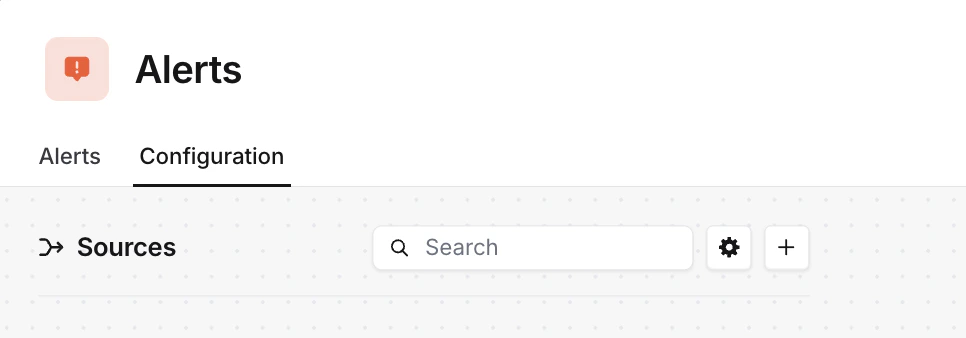
Select the Configuration tab at the top of the page
-
Press the ‘New alert source’ button
-
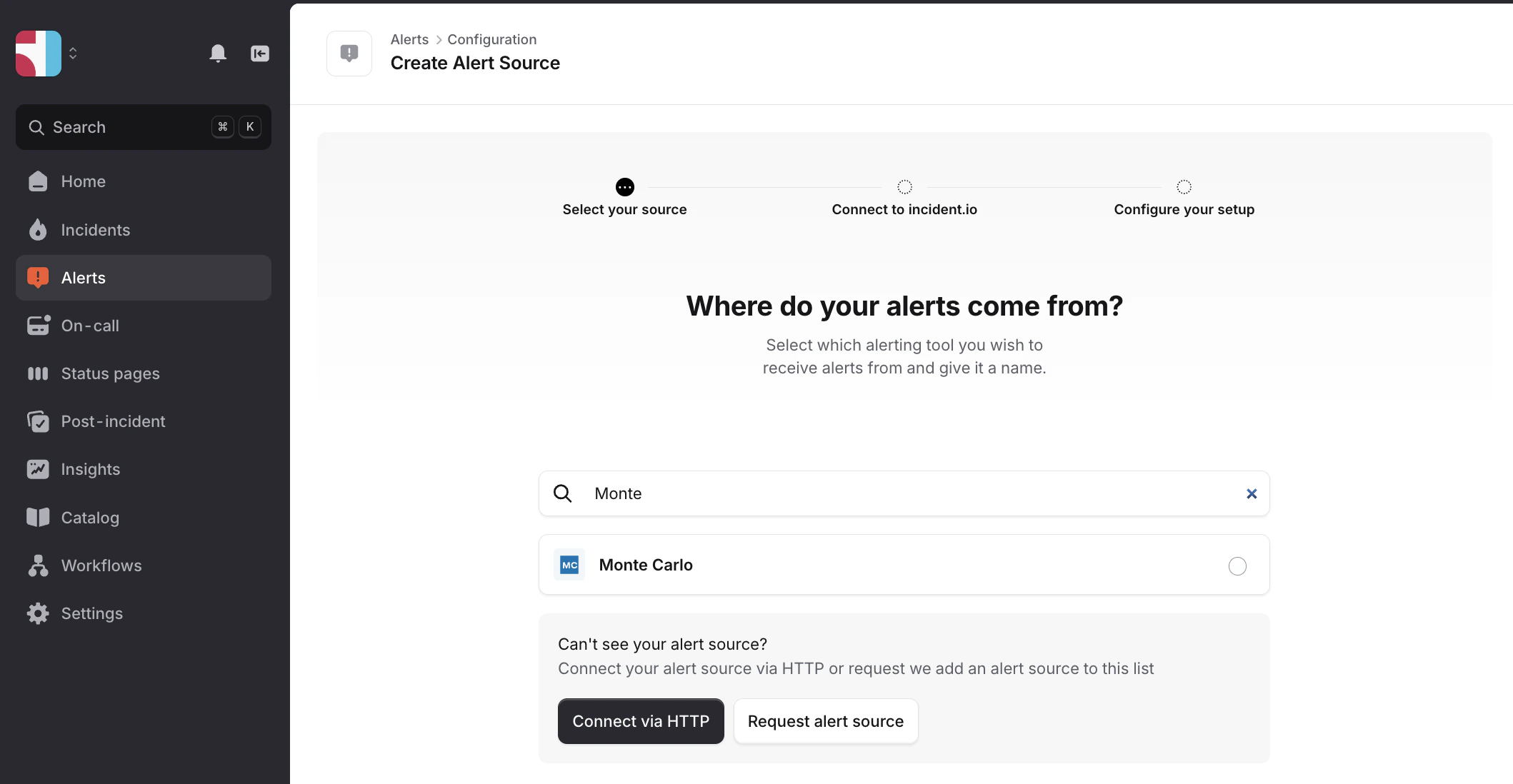
Search for ‘Monte Carlo’ and click continue to create the alert source
-
Head over to the notification settings page in Monte Carlo
-
Create an audience or edit an existing audience.
-
Name the Audience and select incident.io as the Recipient channel.
-
Enter the destination incident.io URL from incident.io and token if applicable.
-
[Optional] Name this recipient, as a single audience can have multiple recipients.
-
Create the audience
Alert events and updates
The following events receive an update to incident.io:
- Alert is created
- Alert is acknowledged
- Alert status is updated
- Alert owner is changed
- External ticket is attached to an alert (Jira, ServiceNow, etc.)
- Alert is marked as incident
- Alert is unmarked as incident
- Alert is resolved
Monte Carlo integration will use ‘Last wins’ in the alert updates, meaning that every new alert we receive with the same “incident_id”, we’ll update the fields to the newest value. incident.io uses “incident_id” as a deduplication key, so if there are other alerts coming with the same id, it will not create new alerts for them.

