

- Teams like engineering, communications, legal…
- Different impacts across products, services or regions with different groups working on mitigations
- Groups exploring independent approaches towards resolution, or investigations on root causes
Creating a stream
To create a stream, simply type/incident stream in an incident channel.
You’ll be presented with a modal to:
- Set a name for the stream
- Assign someone as the stream lead - this will usually be a different person to the main incident lead to avoid splitting their focus
- Invite anyone else who should collaborate on the stream
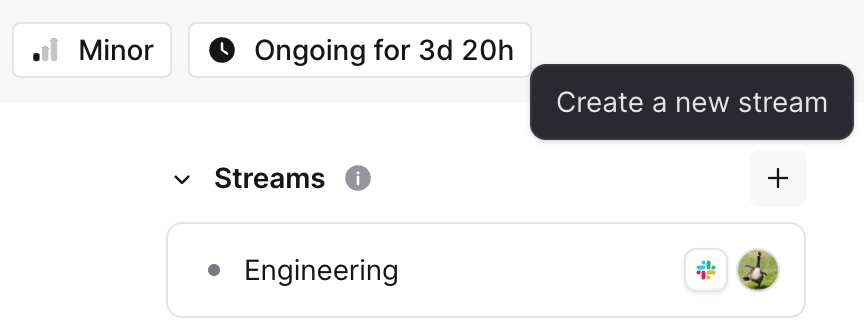
If you’ve configured automatic call links we’ll also create one for your stream. If not, you can also manually link a video call from the stream channel, just like in an incident channel.
Updating a stream
To create an update, simply type/incident update in a stream channel, just like you would in an incident channel.
You’ll be presented with a modal that:
- Allows you to provide a short message to update people with what’s going on (’ Can you share any more details ’)
- Lets you set a reminder for your next update: no need to remind yourself manually! We will come back and remind you when an update is due.
Actions in a stream
Track the work happening in a stream by creating actions, just like you would in an incident. Actions are the things that need doing now to move the stream forward — reboot a server, draft customer comms, pull a list of affected accounts. You can create and manage actions from the stream channel in Slack, or from the stream’s dashboard page:- In Slack, run
/incident actionin the stream channel. With no message we’ll show the open actions for that stream; add a description (e.g./incident action draft customer comms) to jump straight to creating one. You can also react to any message with:boom:to turn it into an action. - In the dashboard, open the stream and use the Actions section on the Overview tab. Select the + button to add an action, then assign it, mark it complete, edit, or delete it.
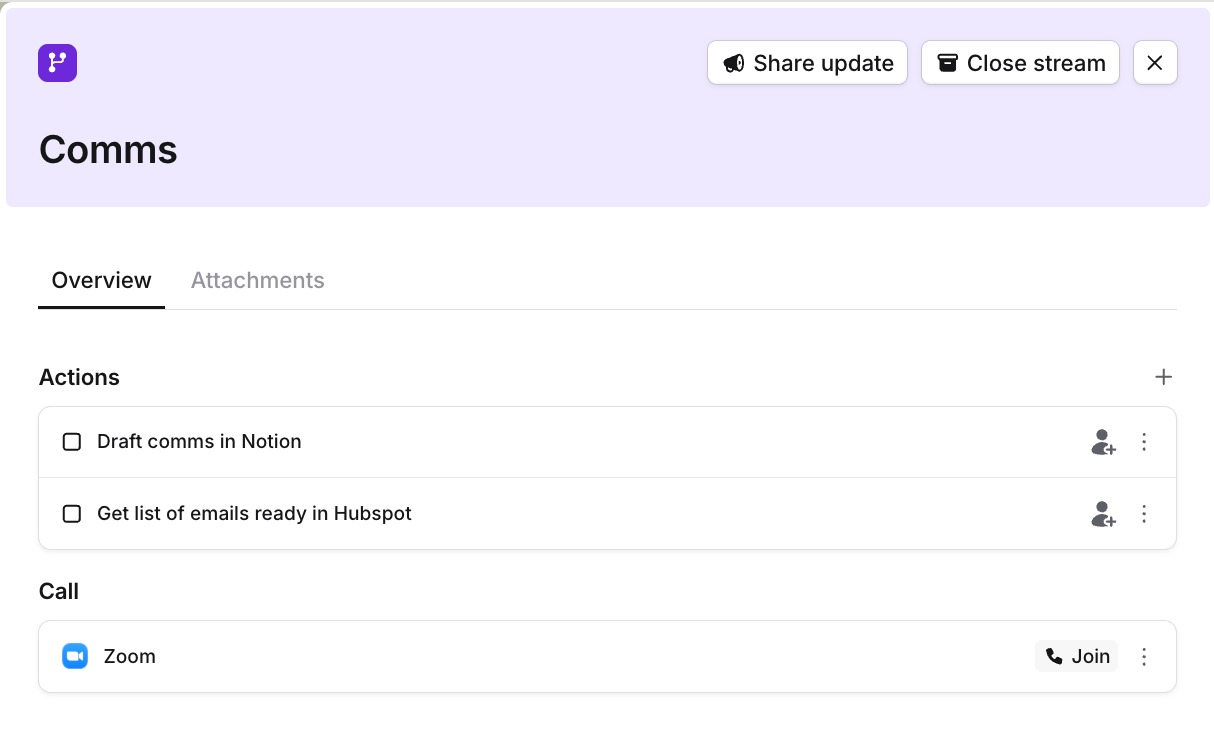
Actions in a stream don’t convert into follow-ups — streams don’t have their own post-incident flow. Once a stream is closed you can still update or tidy up its existing actions, but you won’t be able to create new ones.
Closing a stream
Once a stream of work is complete, type/incident close in the stream channel.
You’ll be presented with a modal that asks you to provide a final update on the stream.
The stream will be marked as closed, and the final update will be posted in the incident channel to keep everyone up to speed.
Roles in streams
Just like incidents, you should nominate a person to lead each stream. We recommend you have a separate lead for each stream to the incident, as they cover different areas of work in different Slack channels. If you have set up custom incident roles, we’ll also make those available in streams. Any role available in the parent will be available in its streams. From within the stream channel you can use commands such as/inc lead and /inc handover just as you would in an incident to reassign the roles in that stream.
Streams in your incident timeline
Activity that occurred in a stream will be included in your incident timeline in both the dashboard, and your exported post-mortem. We’ll highlight which stream each item occurred in.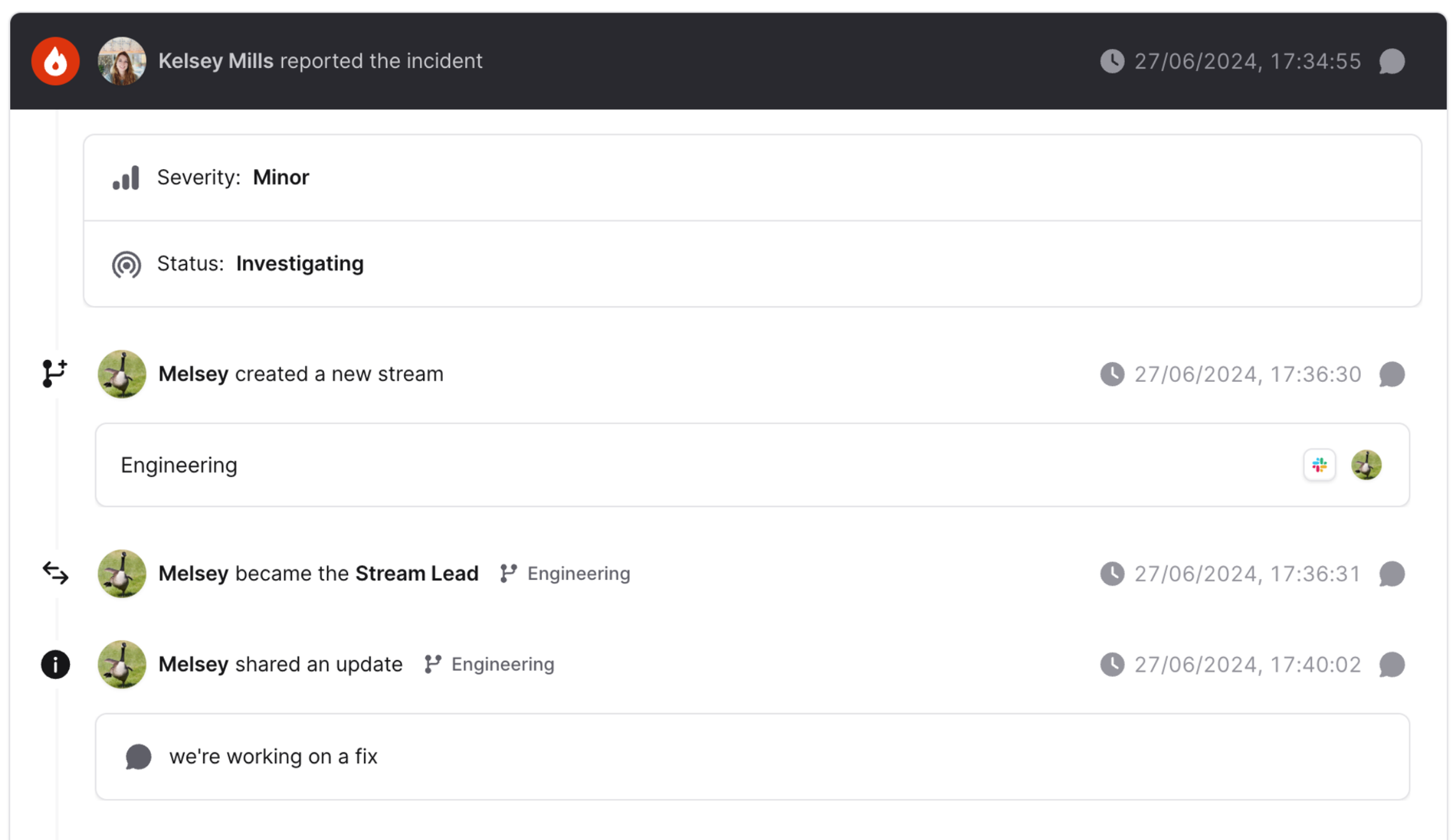
Restricting access to streams
This can be done by making a private stream from a public incident. Read more about that here.Streams shortcuts cheatsheet
If you’ve learnt just one command you can use it in streams too!/inc while in a stream’s Slack channel will pop up a menu of all the actions you can run in a stream.