Webex
We can automatically create a Webex meeting whenever an incident is declared and attach it to the incident.
This helps speed up your incident response and reduces the burden of manual tasks on responders.
Installation
1. Go to Settings → Integrations, find Webex
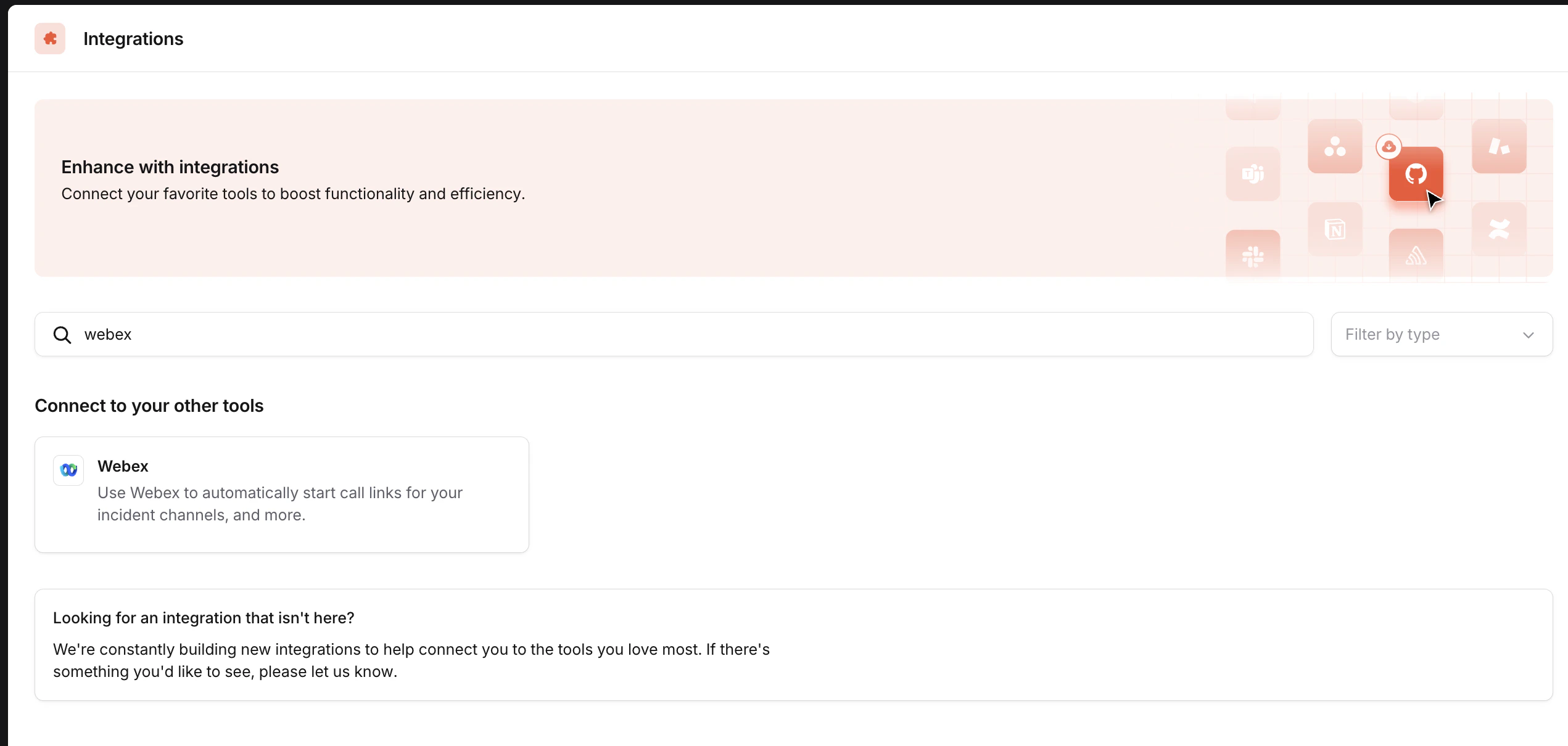
2. Click Connect on the Webex integration
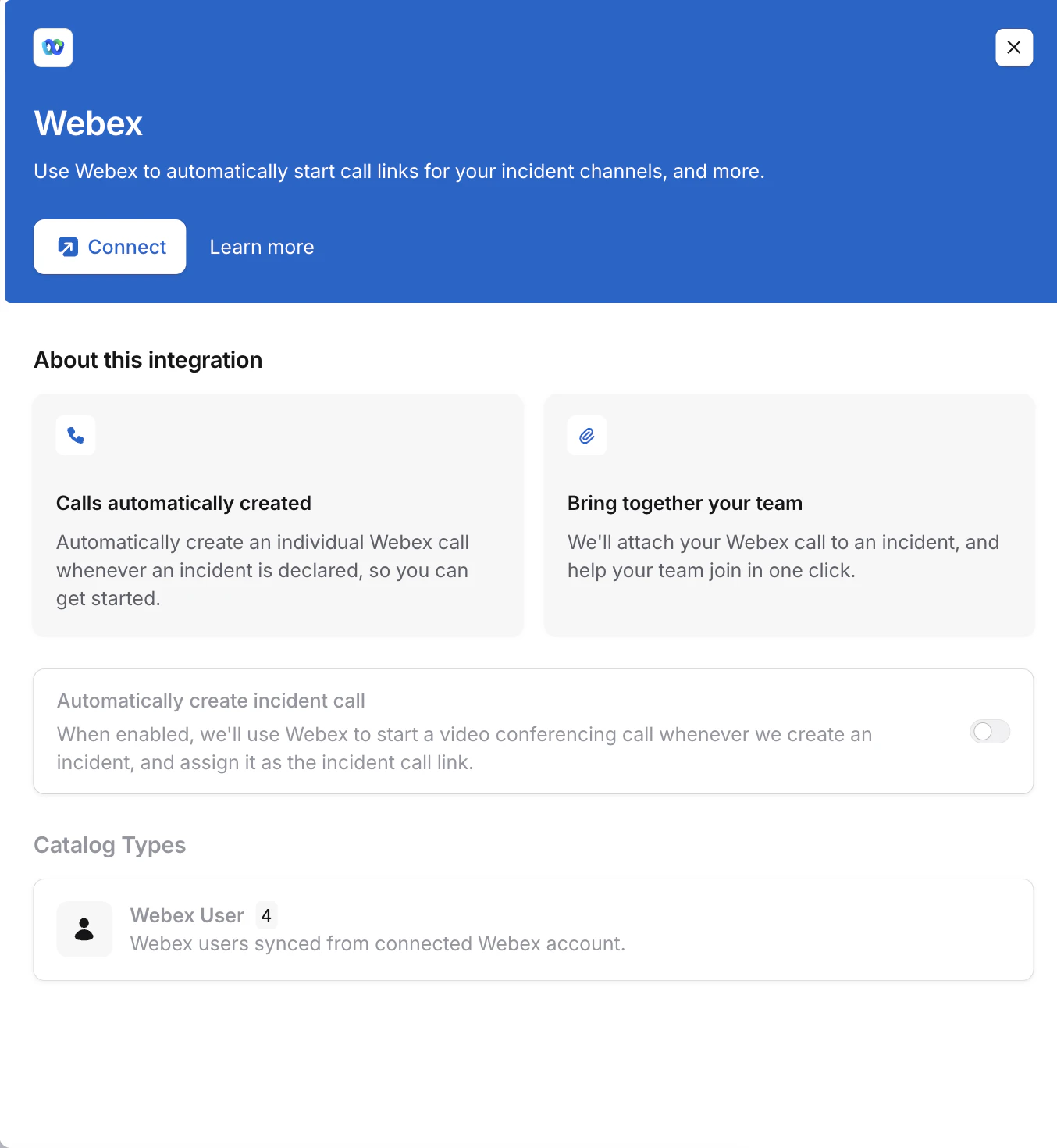
3. Log in using a Webex organizational admin service account
The connecting user must be an organization administrator and have host privileges in your Webex organization.It’s important to know that when the integration is installed, the connection to incident.io will belong to the user that installed it. Webex connections like this, which use OAuth, belong to a specific user, for this reason, you may wish to set up a dedicated service or “bot” account.
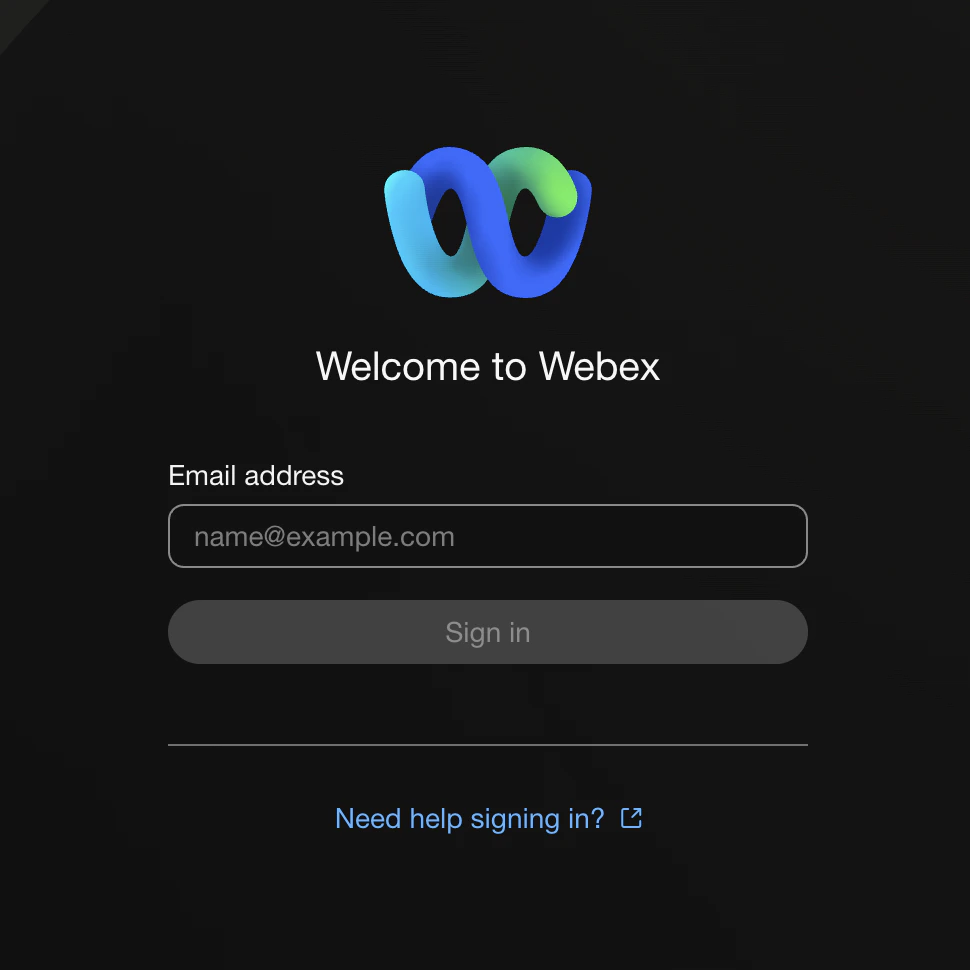 Once you’ve logged in and authorized the connection, you’ll be redirected back to the dashboard.
4. Enable auto creation of incident calls
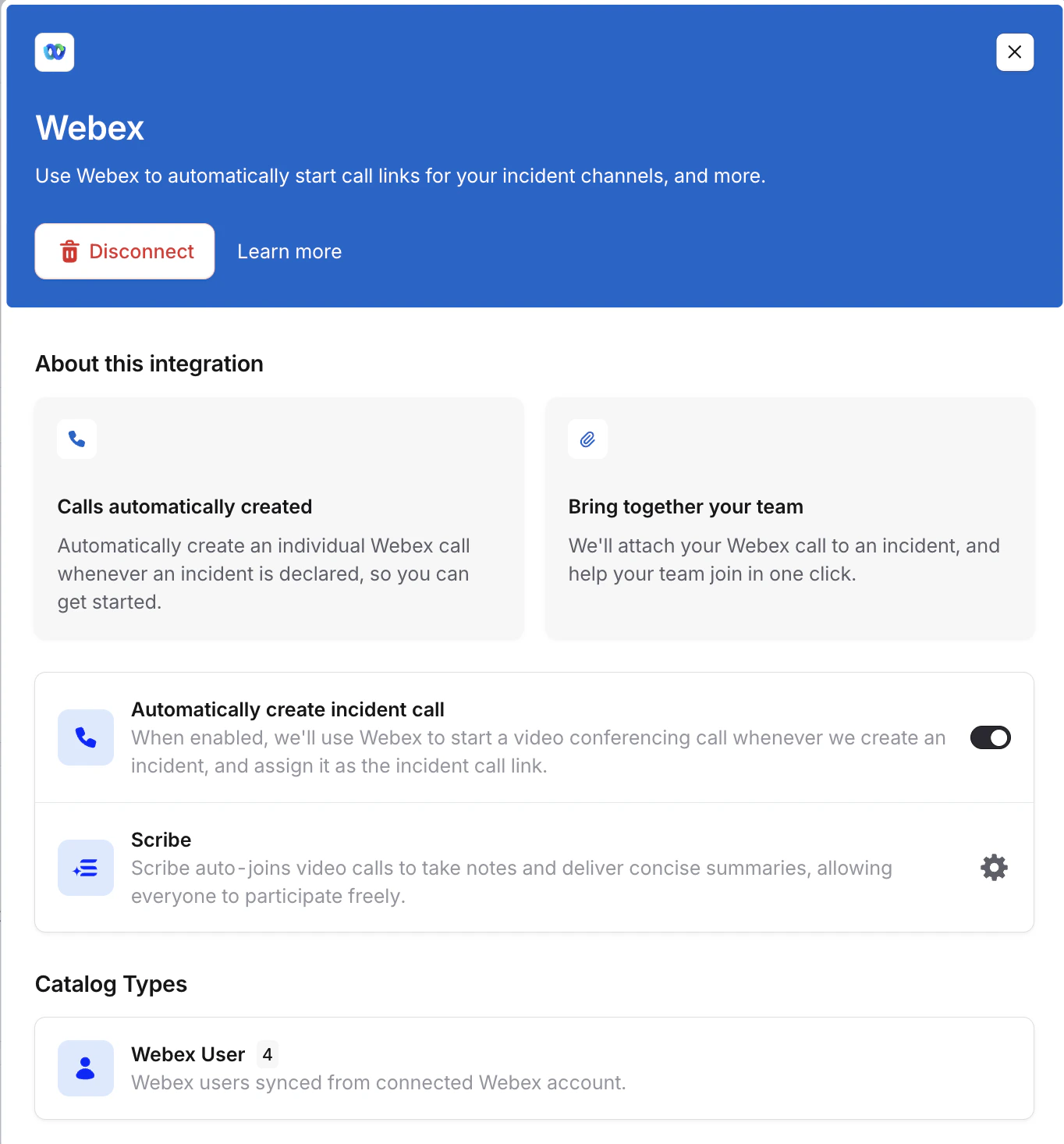
With Webex installed, you can now configure it to automatically create Webex meetings for your incidents. Toggle on Automatically create incident calls
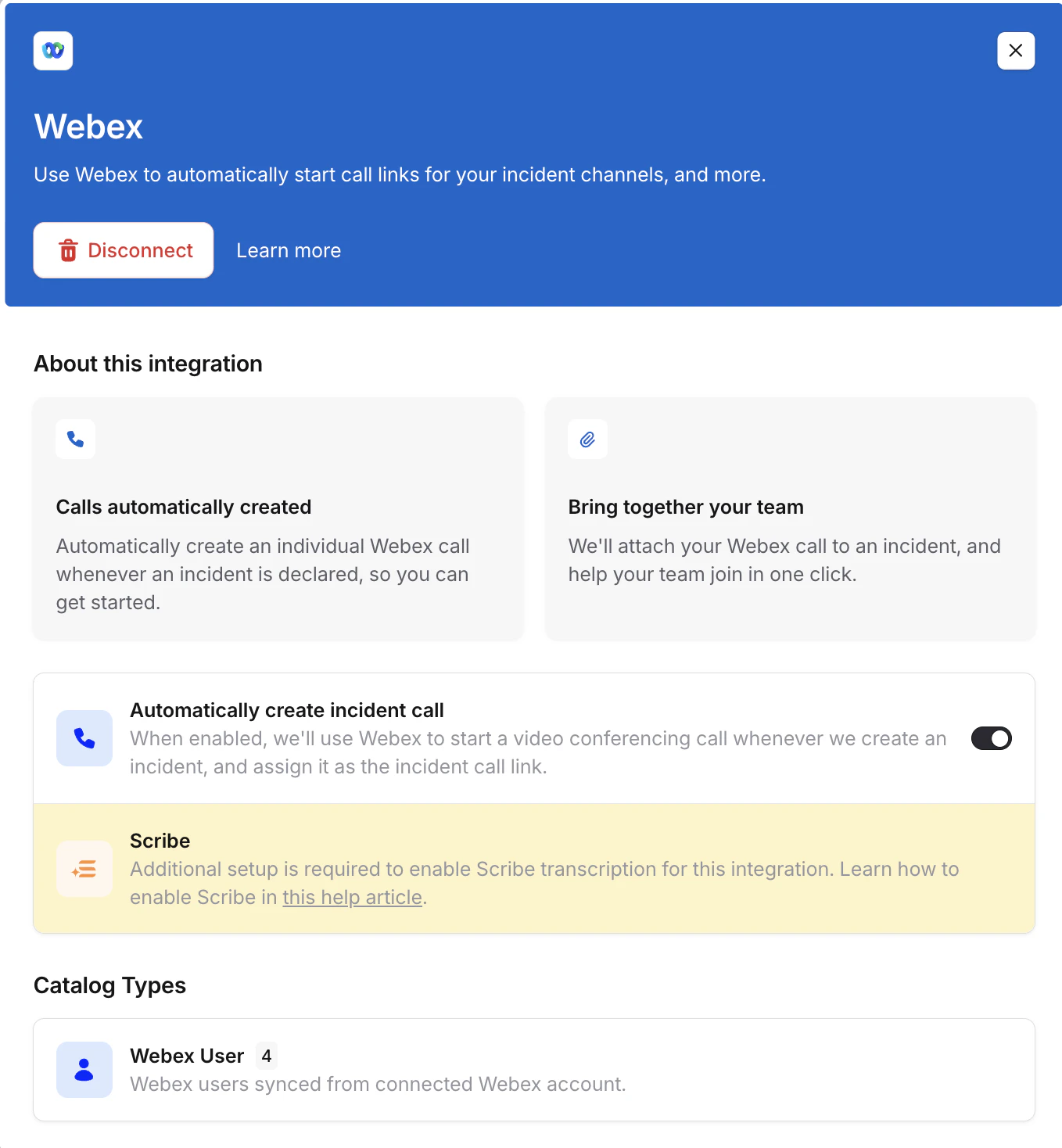
5. Enable Scribe
To enable scribe for Webex meetings, your Webex administrator must authorize our Service App:
-
Sign in to the Webex Admin Hub
-
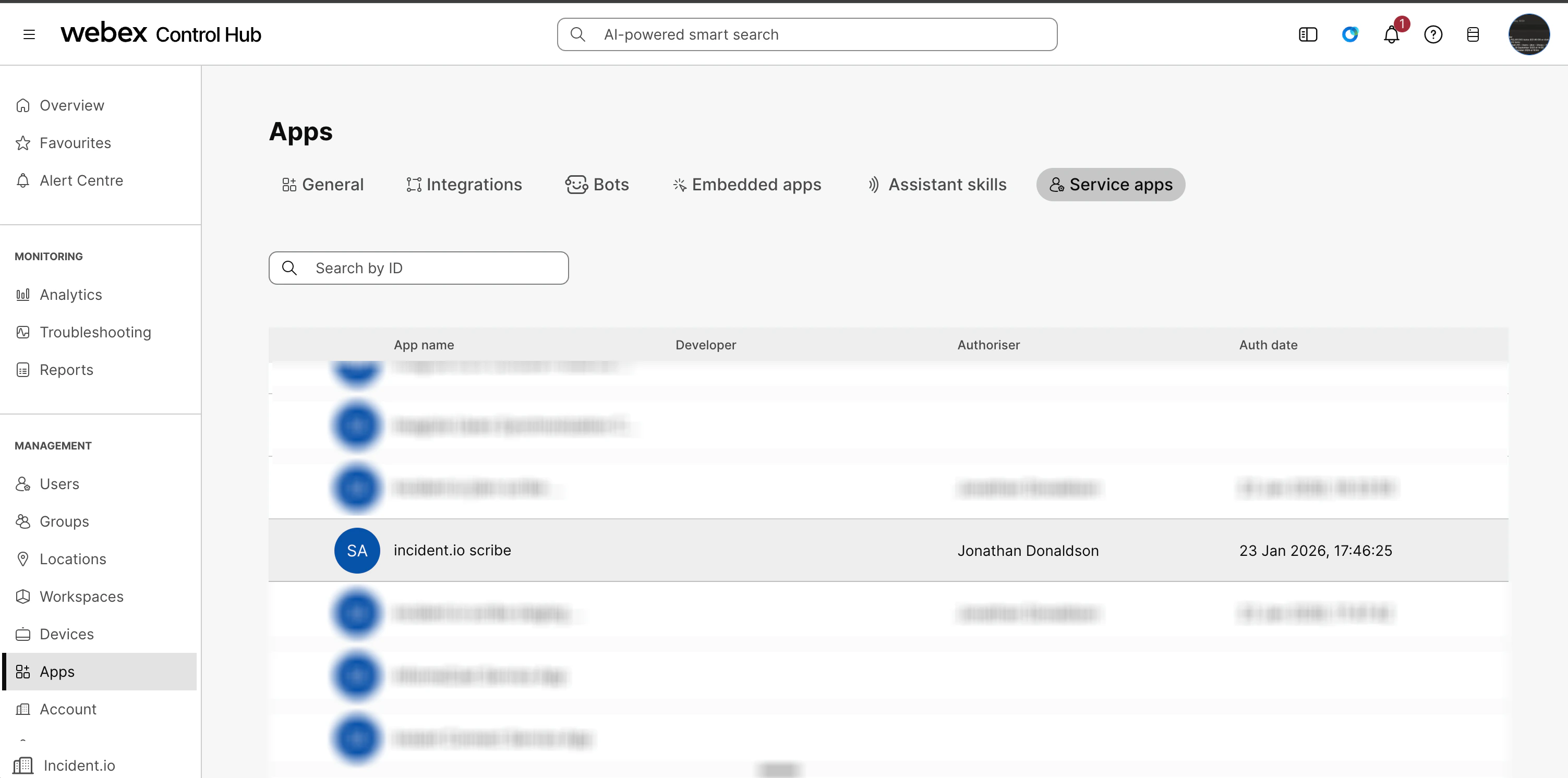
Navigate to Management > Apps > Service apps
-
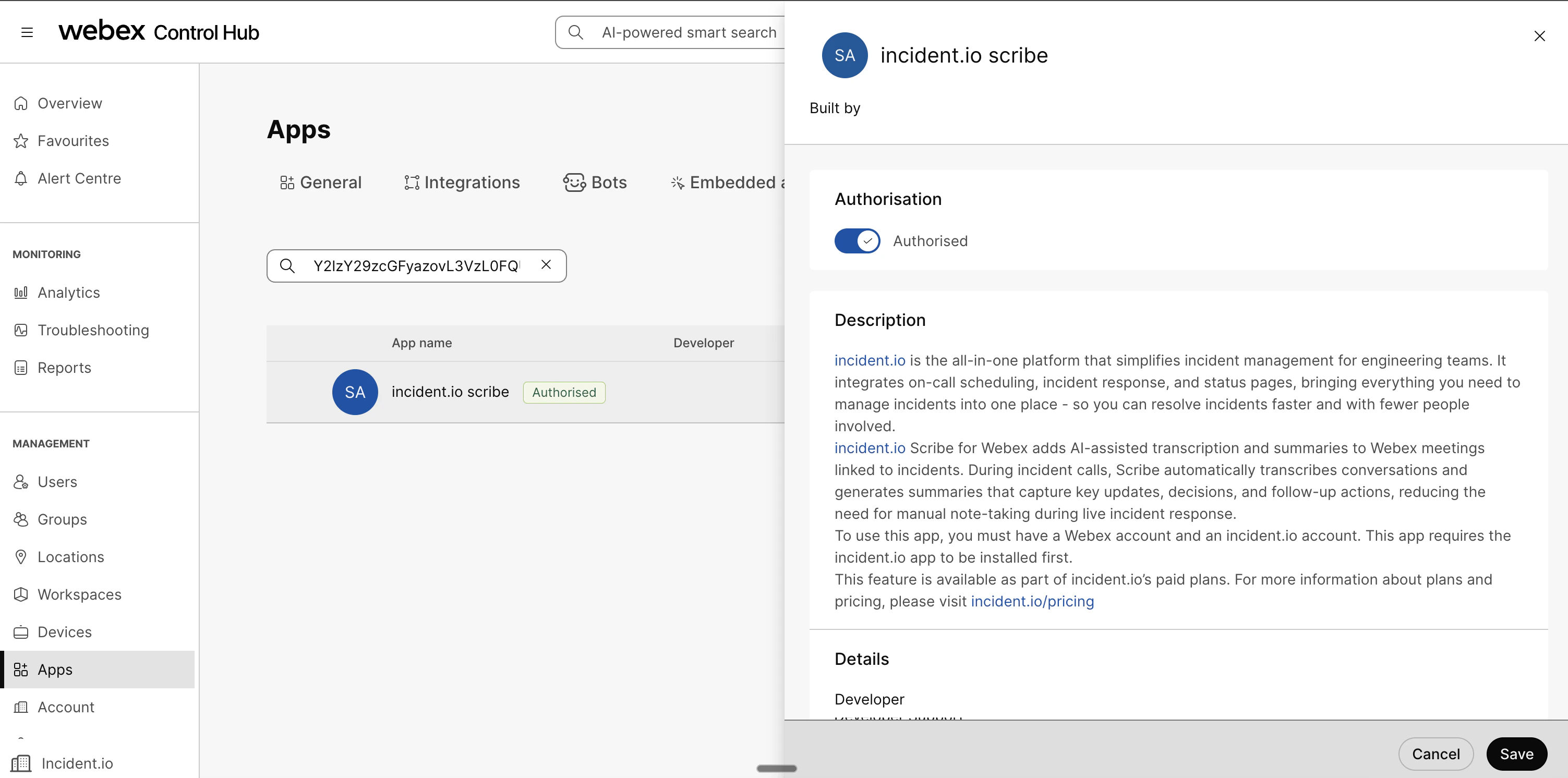
Scroll down and select incident.io Scribe. If you are unable to find it, you can also search by app ID:
Y2lzY29zcGFyazovL3VzL0FQUExJQ0FUSU9OL0NjZmRiOTU2ZTE3NzUzNDhkMTg0MmRjYWYxZTZkZjg0MjQ1M2YzZjA1NTQyOWJiNTBiMWY1OTM4YmE0MzgyZjJl
-
Click Authorize and then click Save to grant the required permissions
Once authorized, we will automatically detect this and enable Scribe for your Webex meetings.
Permissions
spark-admin:people_read - Enables us to add Webex users as a catalog type, so that we can link Webex users to incident.io users.meeting:admin_schedule_write - Enables us to schedule meetings on behalf of others. This is used to create meetings for the incident lead.meeting:admin_schedule_read - Enables us to add an existing meeting to an incident. For example, if you have an ongoing meeting and want to use that as the incident call instead of the automatically created one.meeting:admin_participants_read - Enables us to track which users are taking part in the incident call, allowing this to be shown in the incident timeline.

