

Installation
You can add Zoom to incident.io and configure auto create in just a few clicks.1. Go to Settings → Integrations
2. Search for Zoom, click its card, then click Connect
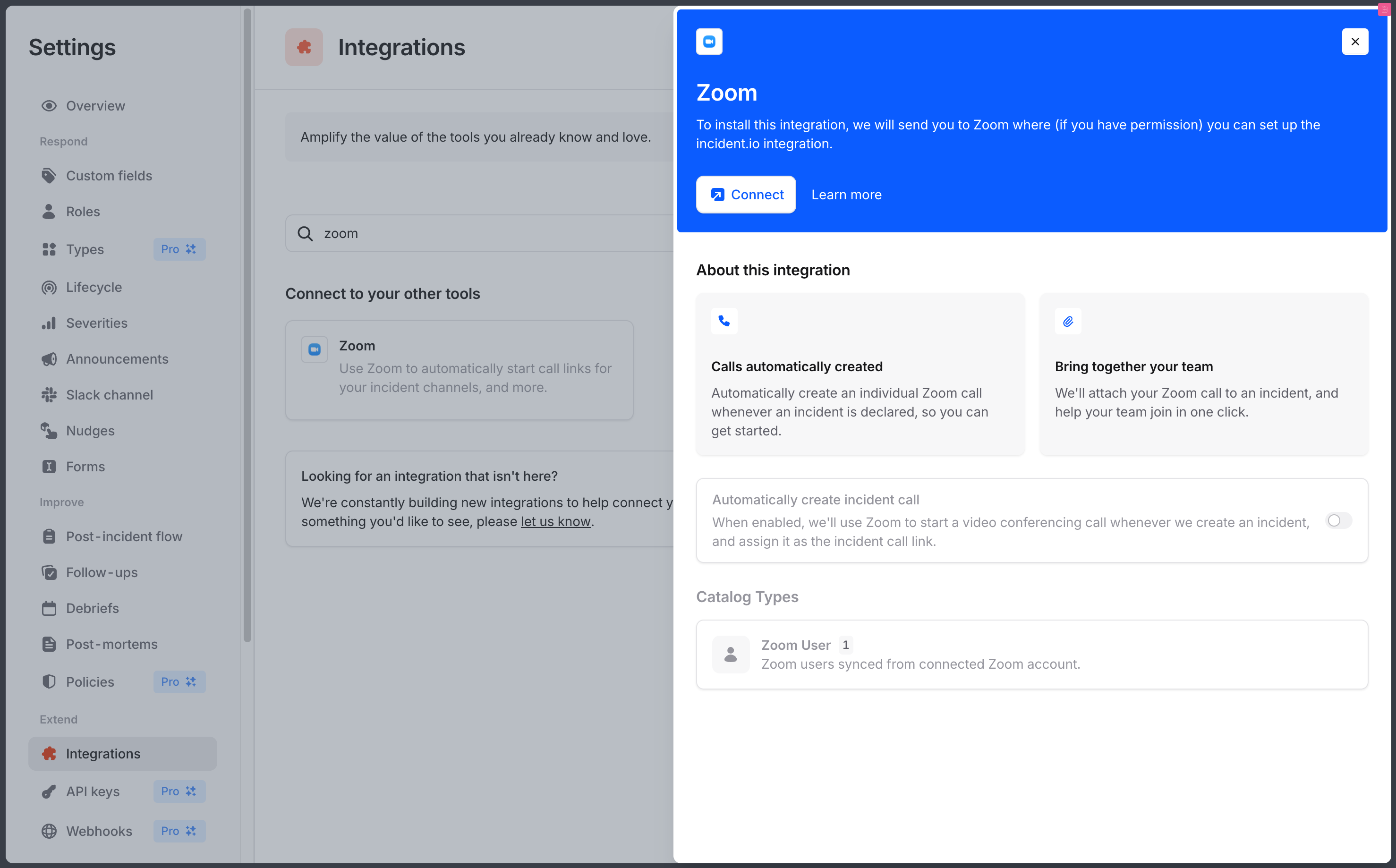
3. Log in using a service account
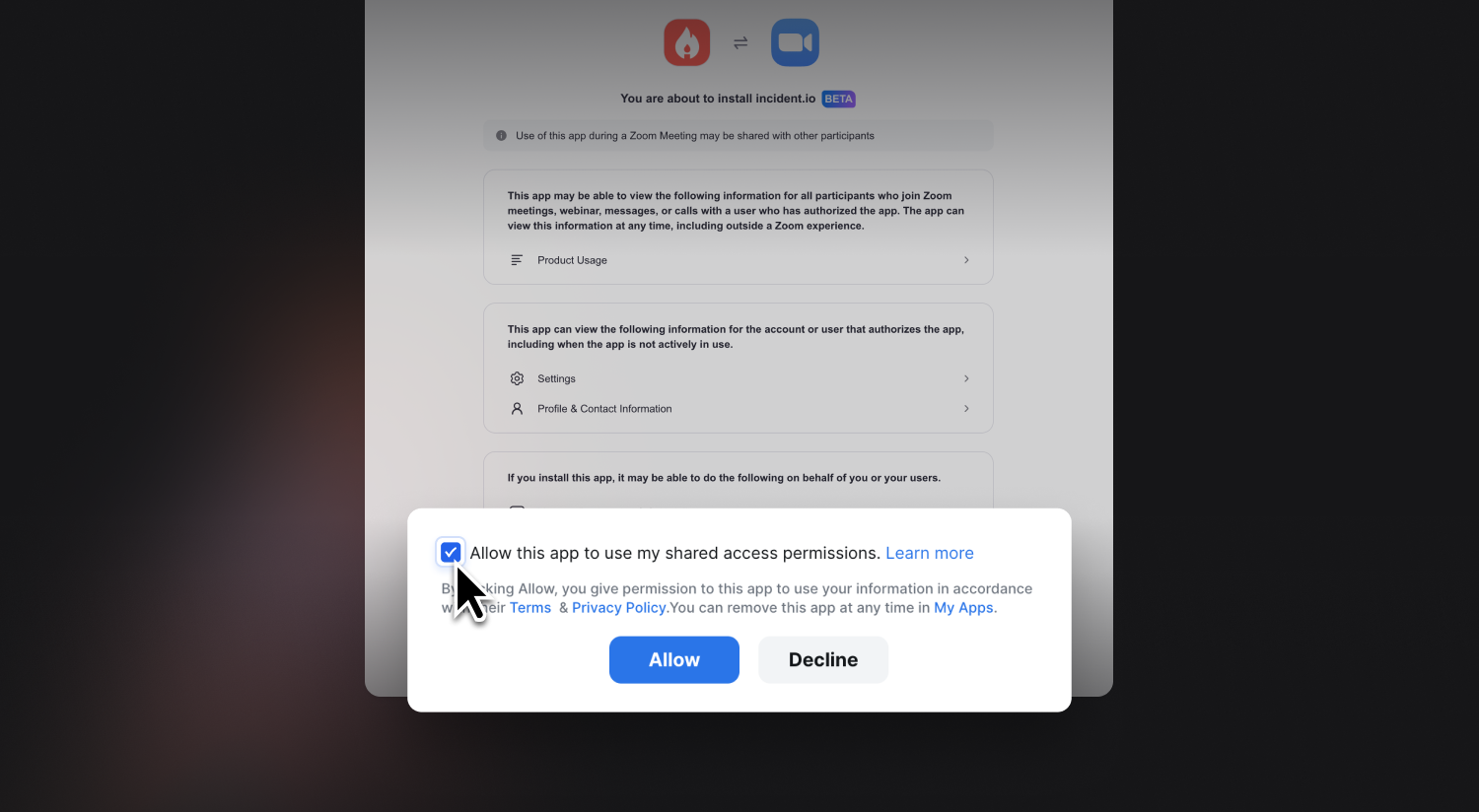
Clicking Connect will take you to the Zoom Marketplace, where you’ll be asked to sign in and install the app by accepting the permissions. To access our full range of incident calls features, you’ll need to install with an account that has role permissions to view users, and check the box Allow this app to use my shared access permissions.Make sure to create/sign in with a service account!
4. Enable auto create
With Zoom installed, turn on Automatically create incident call in the Zoom panel, or from Settings → Calls.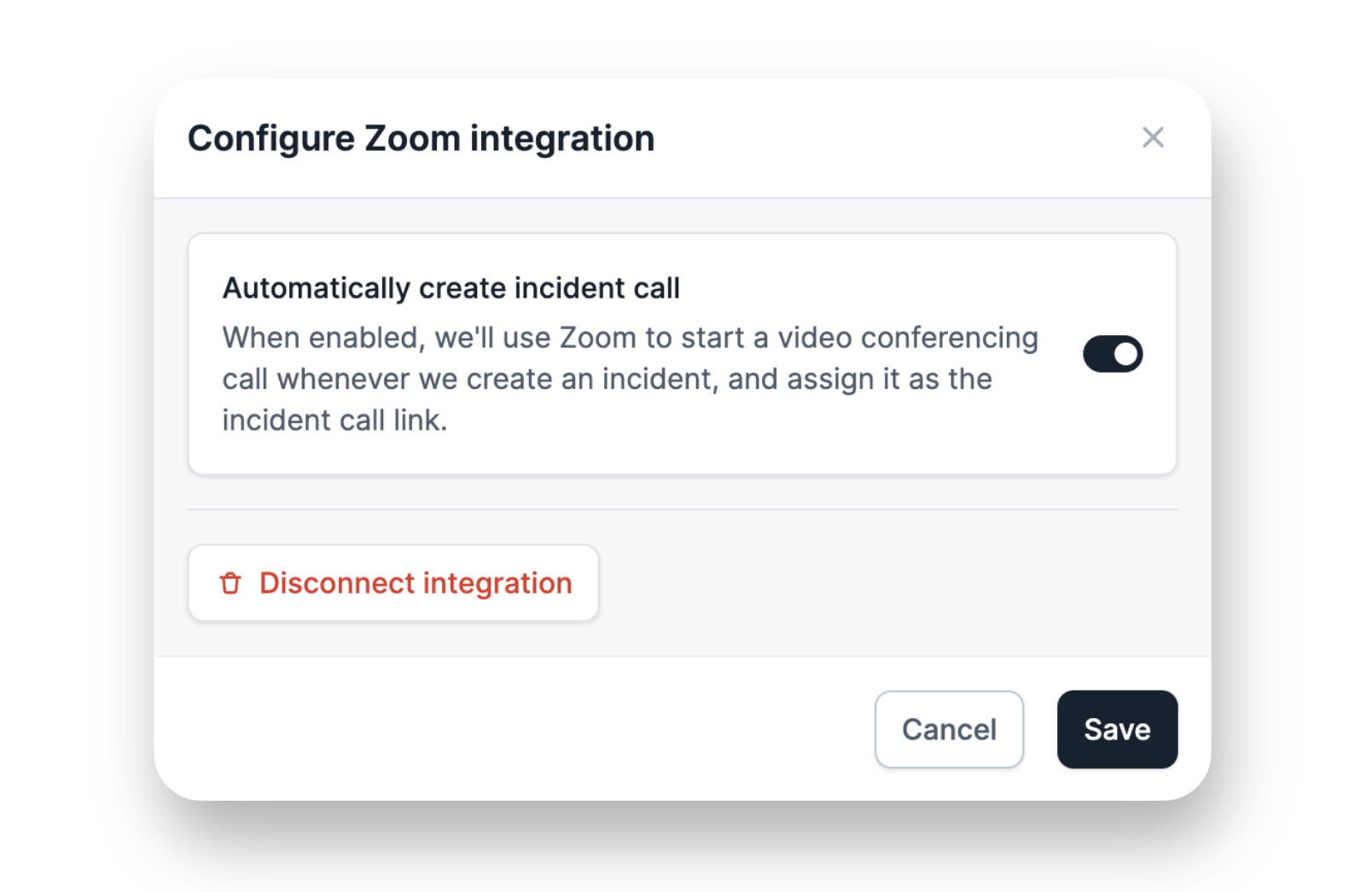
5. All set!
You’re good to go.Automatically creating calls
With this configuration applied, incident.io will create a Zoom meeting whenever an incident is declared.- The meeting link will be set to the incident’s Call URL, display in the dashboard and anywhere the incident is mentioned.
- We’ll also message about the Zoom meeting in the incident channel, with an easy Join Call button.
If you need help with this, get in touch !
Permissions
Installing Zoom will authorize incident.io to:- View and manage meetings : so we can create meetings in this users name
- View and manage recordings : so we can automatically record these meetings (should it be requested)
- View user information : to help us identify the Zoom user and link them to their Slack identity for debugging of the integration
- View user settings : to read password requirement settings
Connecting multiple accounts
Zoom allows only a single access token per app, per user. This means that once you connect incident.io to Zoom, any previously issued access token for that app and user is invalidated. This means that if (for example) you have a production account connected to Zoom, and you then connect the same Zoom user to your sandbox account, that the production account will be disconnected from Zoom. This behavior from Zoom aligns with OAuth 2.0 best practices to ensure secure access control and prevent simultaneous sessions with multiple tokens.FAQs
Which Zoom account should we use for incident.io?
Which Zoom account should we use for incident.io?
We recommend using a service account rather than a real team member’s account. Whoever incident.io authorizes against gets assigned as the Zoom meeting host, so using a real person’s account means:
- It might be confusing to imply a human created the meeting rather than a dedicated bot account
- It’s always the same person, which adds to the confusion
- That person’s calendar fills up with every incident call
- You lose access to the Zoom integration if that person leaves
Can we uninstall Zoom?
Can we uninstall Zoom?
Yes. Visit https://app.incident.io/api/zoom_uninstall to revoke the existing credentials and clear any Zoom data from incident.io’s systems.