- Debriefs being scheduled and/or completed
- Follow-ups being assigned and/or completed
- Post-mortems being exported and/or completed
- On-call users having a specific notification setup
Policies are available on Pro and Enterprise plans.
Creating a policy
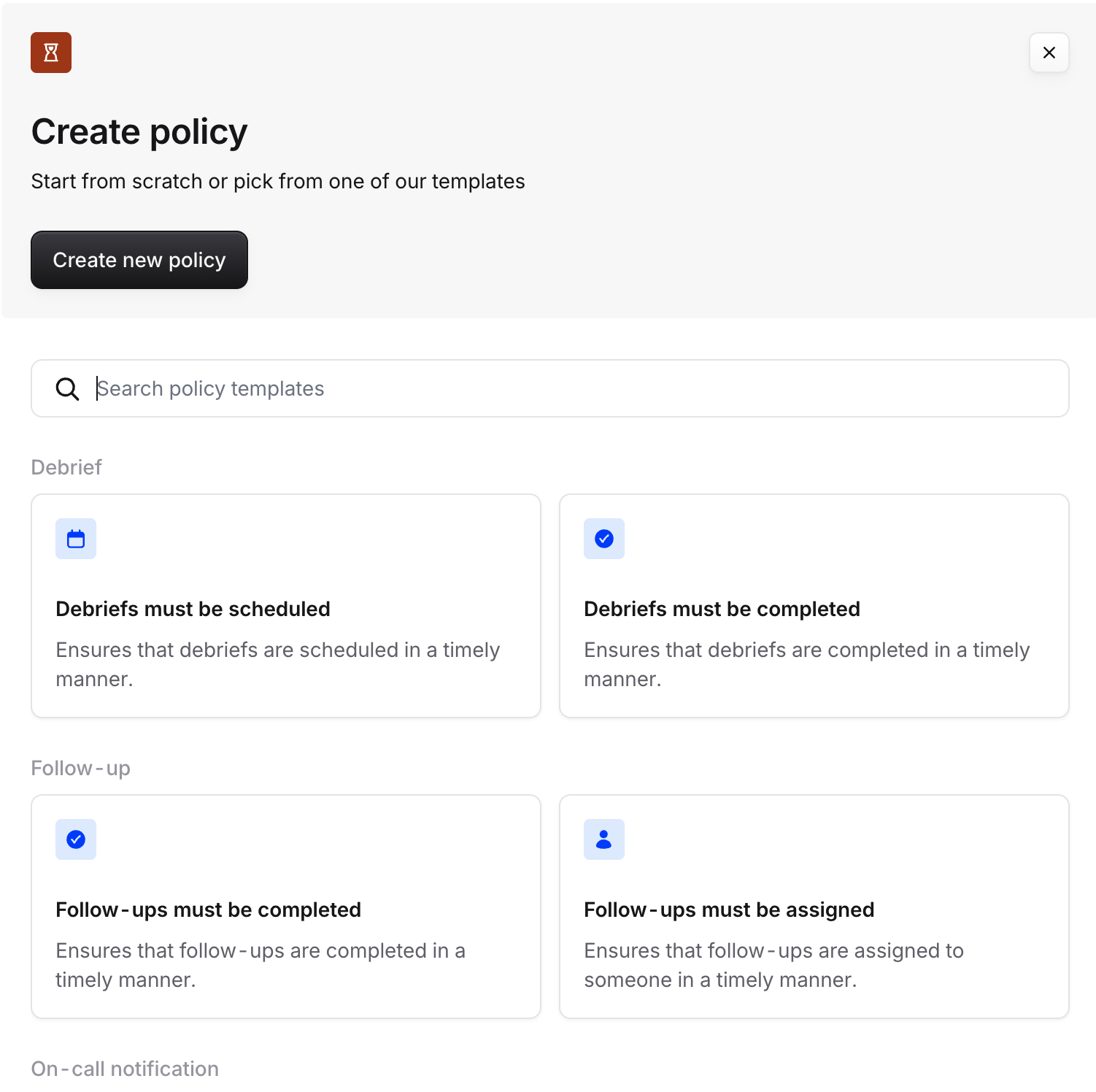
To create a policy, go to Settings → Policies. From there, it’s recommended to leverage one of our default policy templates. If you require a more complex setup, you can set up your own policy viaCreate new policy button.
Viewing outstanding policy tasks
Once your policy is configured, you’ll want to see which tasks aren’t yet completed — for example, follow-ups still outstanding 30 days after resolve. A few places help you track this:- The team page: each team’s Tasks tab lists every open task for the team, including policy violations and post-incident tasks, with filters and the associated policy shown for each one. The Overview tab also has an at-a-glance Open tasks panel.
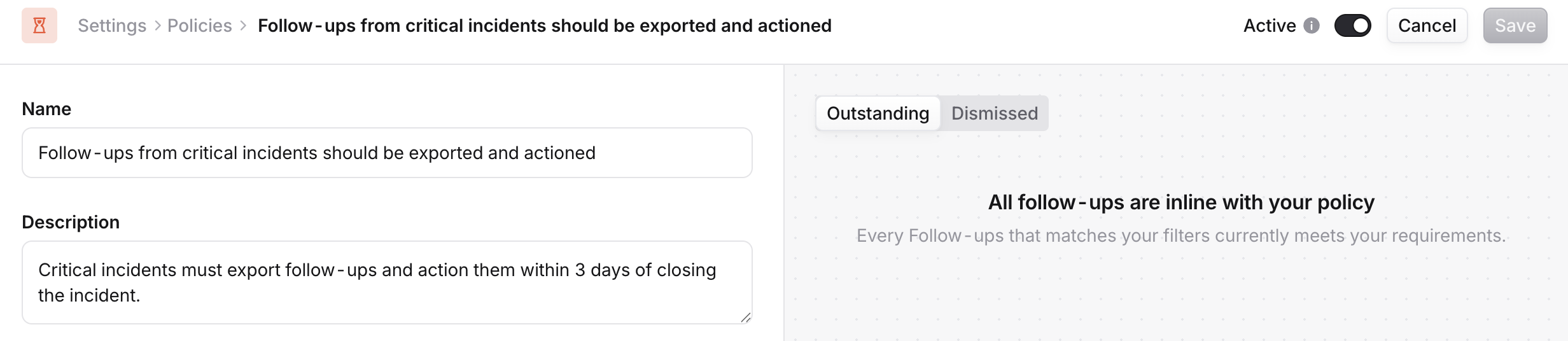
- Per-policy: within each policy’s configuration, the right side panel shows outstanding or dismissed tasks for that specific policy.
- In context: within an individual incident, or within the Post-incident section of the dashboard.
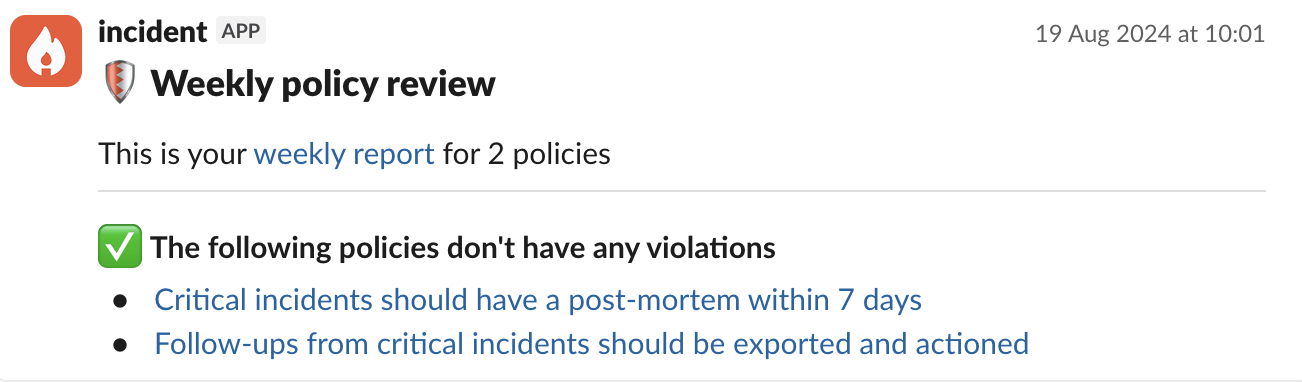
- Policy reports: scheduled summaries delivered to Slack or email (see Policy reports).
Policies and private incidents
By default, policies don’t run on private incidents. This is intentional: private incidents are invitation-only, so evaluating them everywhere could surface violations to people who can’t access the incident. If you want a policy to cover private incidents too, you can opt in per policy using the Also include private incidents toggle when creating or editing a policy. Enabling it requires the Manage policies permission.The toggle only appears for incident-based policy types — follow-ups, post-mortems, and debriefs. It doesn’t apply to
on-call notification policies, which aren’t scoped to a specific incident.
What happens when it’s enabled
When a policy includes private incidents:- Violations are only ever shown to people who can access the incident — in notifications, dashboards, task lists, and counts alike.
- We only assign violations to users with access to the incident. We treat an assignee who can’t access it as unset and fall through to the next contact in the assignee fallback chain. If nobody in the chain can access the incident, the violation is still tracked, but nobody is notified.
Notifying users about tasks
Within each policy’s configuration, you will be able to set who is the assignee (ie. who will be reminded to complete this particular task). For example this could mean:- For On-call notifications, it would be the on-call user
- For follow-up completion, this could be the follow-up owner
- For post-mortem completion, this could be the incident lead
- 2 days before it’s due
- Notifications before a due date do not apply to on-call policies such as notifications settings. This is because you are either in violation of that policy or not, there isn’t a way to know you will be in violation beforehand (we aren’t mind readers yet! ).
- the day it’s due
- 1 day after it’s due
- etc.

Policy reports
Policy reports are scheduled summaries of outstanding policy violations, so the right people don’t have to check dashboards by hand. Reports are organization-wide — there’s no per-user targeting — and you configure them from Settings → Policies.Cadence
Choose how often a report runs:- Daily
- Weekly — pick the day of the week
- Monthly — pick the day of the month
Delivery channels
Where a report can be delivered depends on whether your organization uses Slack or Microsoft Teams:- Slack organizations: one or more Slack channels, one or more email addresses, or both.
- Microsoft Teams organizations: email only.
What’s in a report
Each report has a header followed by one section per policy, marked as compliant (✅) or as having violations (❗).- On-call readiness reports group by the violating user.
- All other reports group by the violating incident.