

What we can do with Linear
Assign triage tickets automatically
If you use On-call with incident.io, you can combine this with Linear’s Triage functionality to automatically action triage tasks to who is currently on call on your incident.io schedules.→ Exporting follow-ups
- Export your incident follow-ups to Linear;
- Sync the status of your tasks between Linear and incident.io, so you can work in Linear without worrying about updating statuses manually in incident.io!

- Export templates, this enables you to pre-set values to fields that can be used when exporting follow-ups.
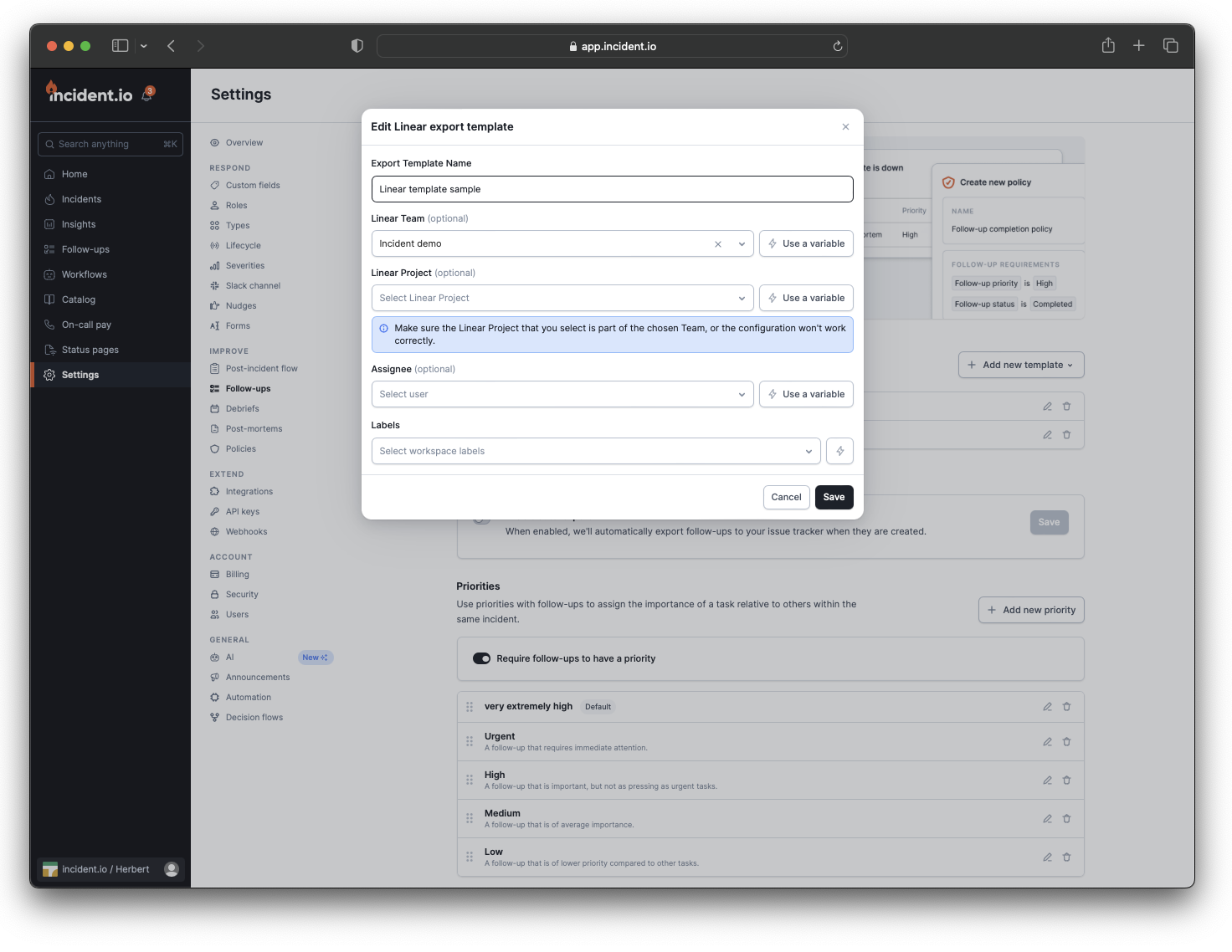
- Auto-exports to Linear, you can automate the export process of follow-ups based on certain incident criteria, such as severity, and specific custom fields such as responsible teams
Create incident tickets in Linear
You can create incident tickets in Linear, keeping a record of your incidents alongside your team’s other work. Incident status can be synced to the Linear ticket using expressions in your template configuration. An incident ticket can be a project too. When it is, that incident’s follow-ups are moved into the project as they’re linked, so all of an incident’s work lands in one place. A follow-up whose template already sets a project keeps that project.Setting Up
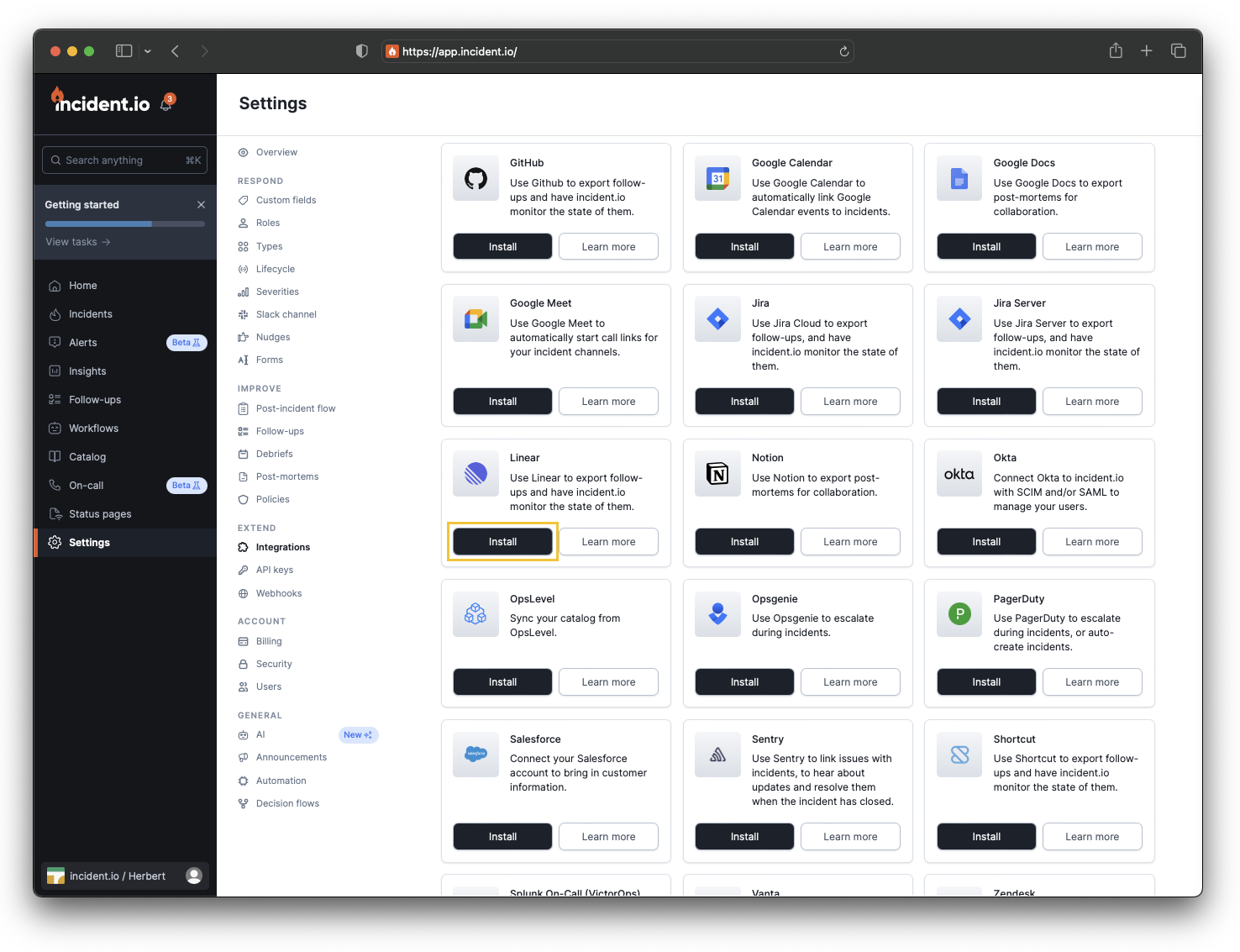
Adding Linear to incident.io is simple.- Go to Settings > Integrations
- Log into Linear
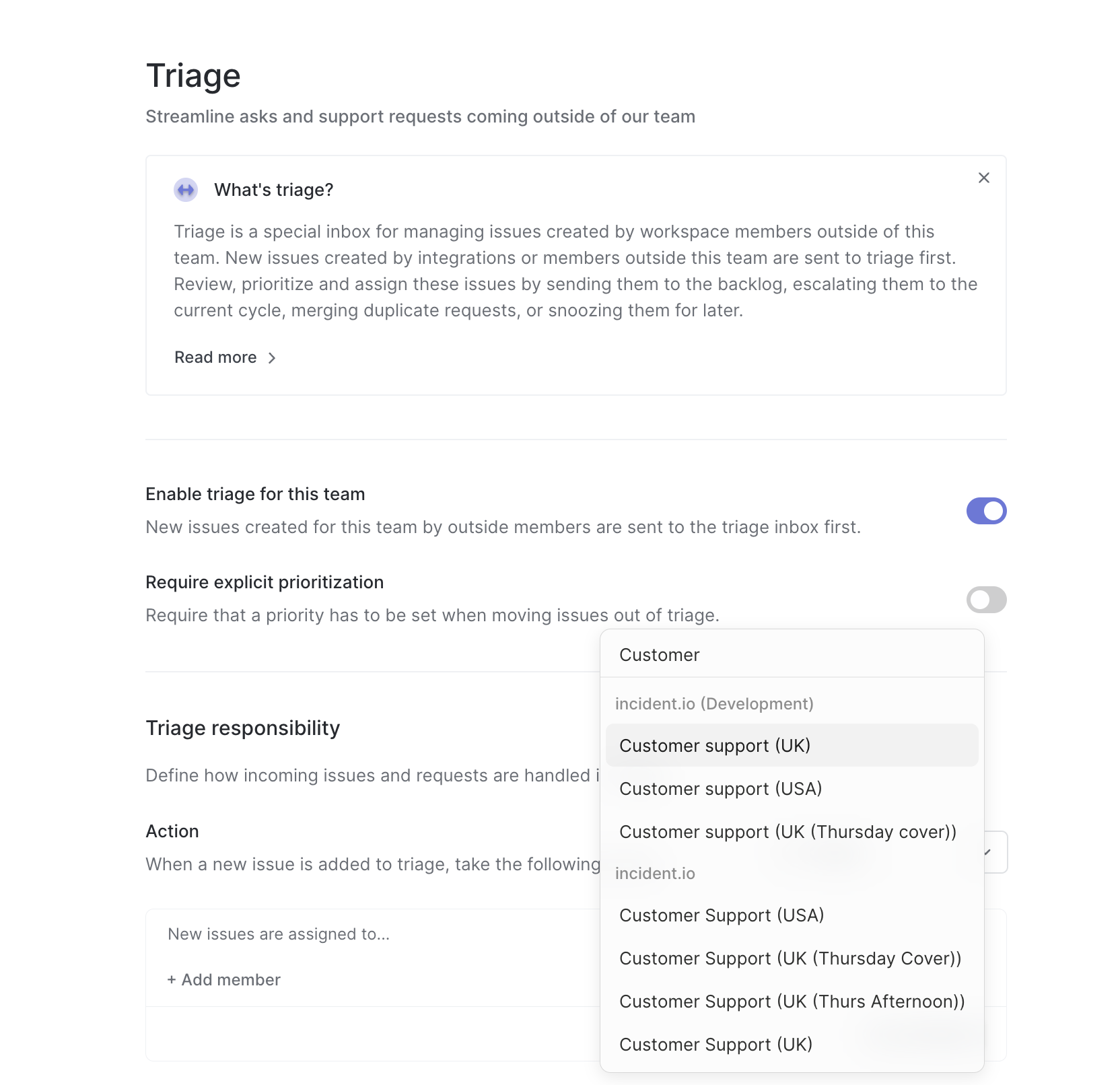
- Enable a Triage action for your team on Linear
linear.app/settings/teams/your-team/triage, select Notify or Assign as a Triage action and click Use schedule to pick which incident.io schedule you want to automatically use.
FAQs
What follow-up data is synced to and from Linear?
What follow-up data is synced to and from Linear?
- Status, Title, Description, Priority, Labels, and Assignee will all go from Linear to incident.
- The Title and Description fields will go from incident to Linear.
- Cancelling a Linear issue marks the follow-up as not doing, rather than completing it.
What schedule data is synced to Linear?
What schedule data is synced to Linear?
- Schedule name and times for the next 5 weeks will go from incident to Linear.
What if I have multiple rotas in incident.io, who will be assigned to the triage tickets in Linear?
What if I have multiple rotas in incident.io, who will be assigned to the triage tickets in Linear?
- Linear will assign the person which comes from the first rota that is active
- Example: If you have a rota 9am-5pm and a rota 5pm-12am, then we’ll return whoever is on shift for each of those. But if you have a first rota that’s 24/7, the person on that will always be assigned to the Linear triage tickets.